Businesses must apply for a ‘Message Template’ from Meta before sending WhatsApp Broadcast, and the template can be selected and used for broadcast upon approval. Users who have adopted WhatsApp Business API through Omnichat can directly apply for a ‘Message Template’ in the backend.
Key Highlights: WhatsApp Message Template
・Message Template: An essential tool for businesses to initiate WhatsApp conversations. Supports rich media to reduce block rates and enhance professionalism.
・Message Structure: Header, Body, Footer, and Buttons.
・Application Process: Submit directly via Omnichat for Meta approval. Choosing the right category and providing samples increases the pass rate.
・Broadcast Application: Once approved, templates can be used across various marketing campaigns with flexible variable content.
What is WhatsApp Message Template?
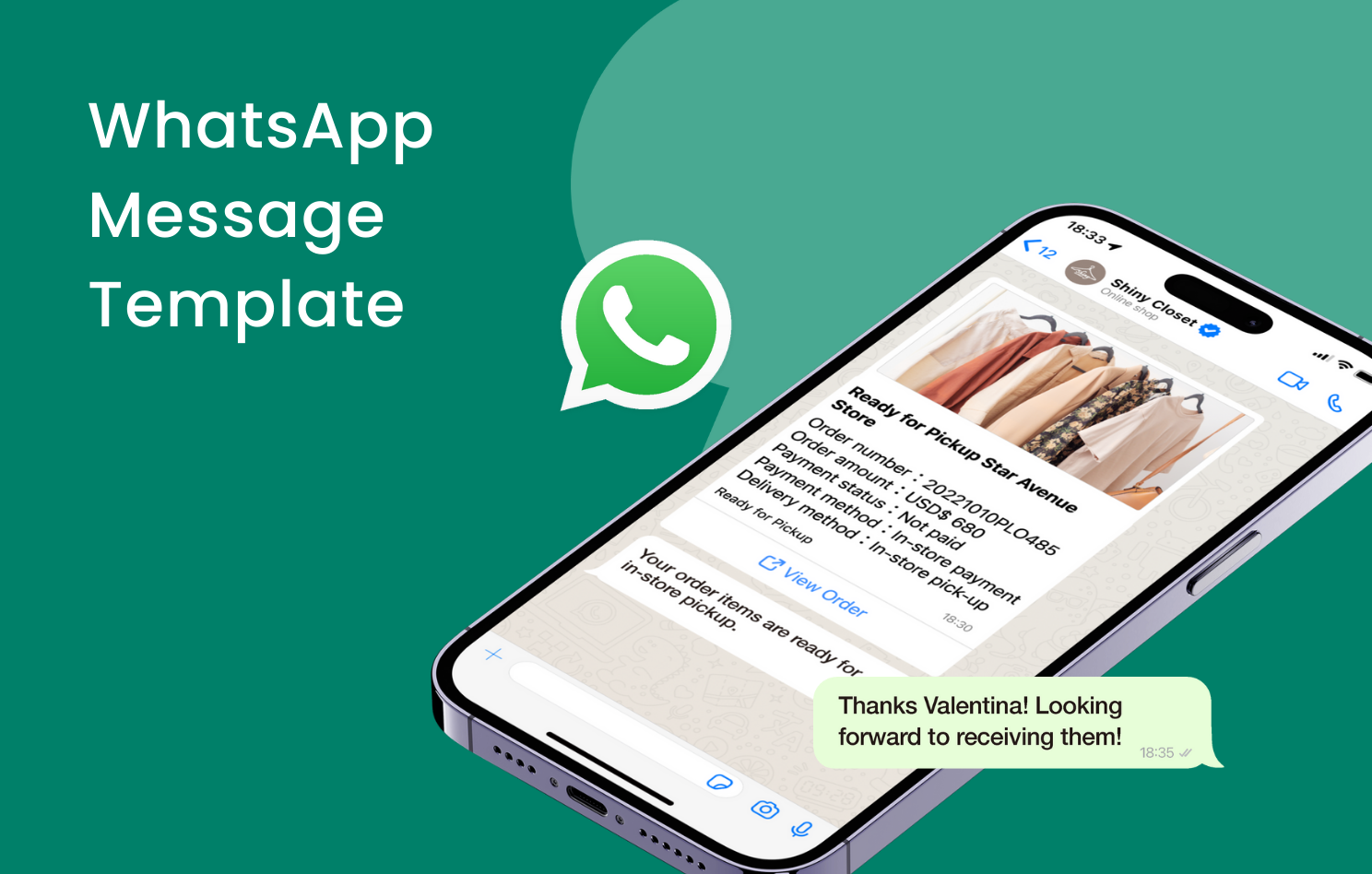
Companies must use WhatsApp Message Templates which support multimedia content to proactively start business-initiated conversations with customers. Therefore, brands can enhance the reading experience, increasing message open rates, click-through rates, and reducing the chance of being blocked.
Moreover, variables can be inserted when applying for a Template, allowing brands to include more precise information in the broadcast.
Structure of WhatsApp Message Template
A WhatsApp Template Message consists of four sections: Header, Body, Footer, and Buttons. Only the ‘Body’ section is required, while the other three sections are optional.
1. Header
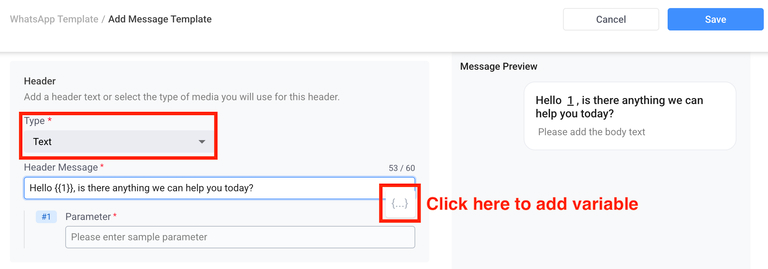
There are three types of headers: None, Text, and Media.
- If you choose “Text,” you can insert a variable where needed. For example, “Dear {{1}}” : specific text will replace {{1}} during the broadcast.
- If you choose “Media,” you must select an image, video, or document further.
2. Body
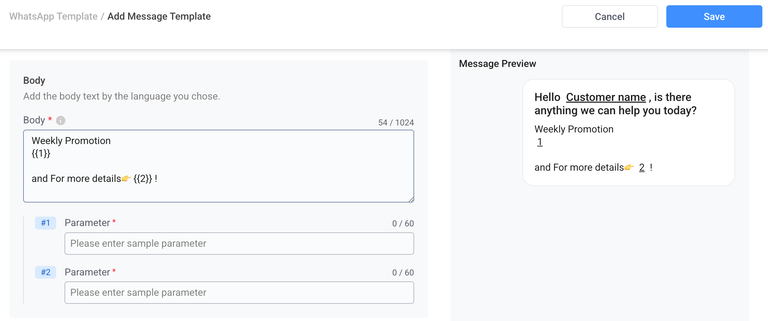
The Body consists primarily of text. You can insert variables where needed. While multiple variables are allowed, you cannot place two variables consecutively (e.g., {{1}}{{2}}), nor can a variable be placed at the beginning or the end of the text.
Example: Setting up a Template for a Holiday Campaign
- Original Content:
【Valentine’s Limited | Up to 15% Off】
Your shop for pandemic protection, skincare, personal care, and health supplements. Earn points with every purchase!
Online Store: 10% off site-wide. Get $50 off on orders over $1,000!
Retail Stores: 10% off site-wide plus a free gift with any purchase.
Campaign Period: 2/1–2/3/2023
Shop Now!
- Using Variables to set up the Template:
【{{1}}】
{{2}}
Online Store {{3}}
Retail Stores {{4}}
Campaign Period: {{5}}
Shop Now!
By replacing key information with variables, a message that could originally only be used once becomes a flexible Template adaptable for different promotions.
3. Footer
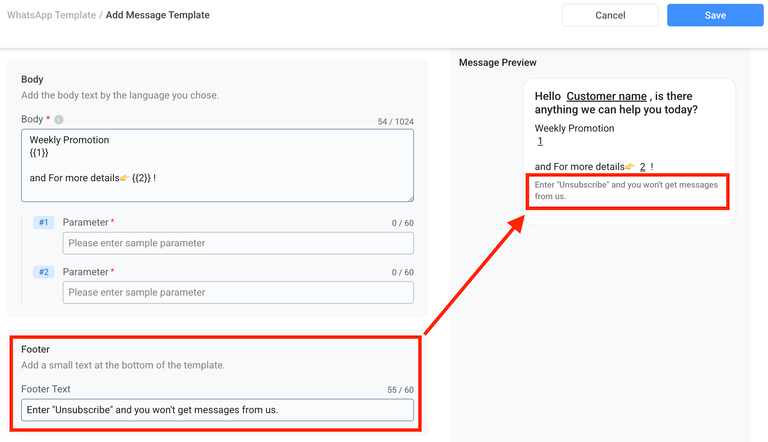
It can only be text content and cannot add the Variable here.
You can set the “Enter “Unsubscribe” and you won’t get messages from us.” message here, so that customers can unsubscribe from the broadcast message by themselves to prevent being blocked.
4. Buttons
Buttons provide a clearer way to invite customers to reply or take action. There are two types:
- Call To Action (CTA): Allows customers to visit a specific website or call a designated number. When choosing “Visit Website,” you can initially enter a placeholder URL (like your homepage); this can be replaced each time you send a Template Broadcast. You can set up to 2 “Visit Website” buttons + 1 “Call Phone” button + 1 “View Order” button.
- Quick Reply: Customers click the button to send a predefined text response. These are typically used with Keyword Auto-replies or Chatbots. While the button text cannot be changed after approval, the automated action triggered by the button (e.g., which Chatbot flow starts) can be adjusted later. You can set up to 10 Quick Reply buttons.

How to Apply for a WhatsApp Message Template?
Setting up your Templates via the Omnichat dashboard offers three major advantages:
- Flexible URLs: “Visit Website” button links can be updated for every broadcast, making the template more versatile.
- Chatbot Integration: Quick Replies can link directly to your Omnichat WhatsApp Chatbots, enhancing real-time interaction.
- Versatility: Templates can be used for both Broadcasts and 1-on-1 chat replies.
Before you begin, ensure you have:
- Registered for Omnichat. (Sign up)
- Connected the WhatsApp Business API to your Omnichat dashboard. (Application Procedure of WhatsApp Business API)
Steps to apply in the Omnichat dashboard:
1. Navigate to the Message Template Page
Go to “Channels” -> “Social Accounts” -> “WhatsApp” and click the pencil icon.
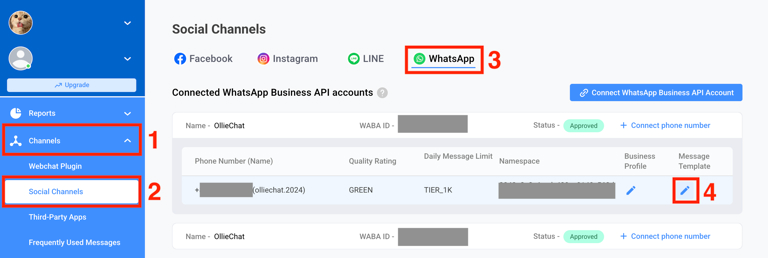
You can also go directly to “Channels” -> “WhatsApp Message Templates” and click “Add Message Template.”

2. Message Template Basic Settings
Display Name: Enter the name that will be shown in the Omnichat admin panel.
Applicable Account: Select the WhatsApp account under which this message template will be created.
Visibility: All teammates, Only me or Designated role (Restrict template access based on team member role permissions.)
Category: Select a category in the Omnichat system to organize your message templates, making them easier to search later.

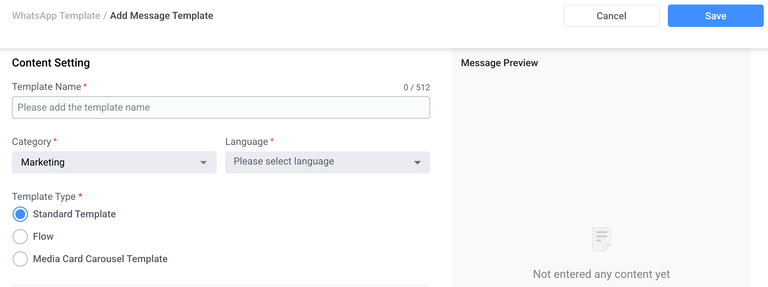
3. Message Template Content
Template Name: For Meta approval (use lowercase letters, numbers, and underscores only).
Category: Choose from Authentication, Marketing, or Utility according to the type of broadcast message.
- Authentication Template: Typically used to send one-time passwords (OTPs) for user identity verification, such as login codes for customers.
- Marketing Template: Used for promotional messages, product launches, or other messages that encourage customer engagement and brand awareness.
- Utility Template: Used to send account notifications, feedback surveys, order updates, or other important service-related messages.
Language: Select the language that customers will see in the template message, only one language can be selected. (e.g., English or Chinese version.)
Template Type: Standard Template (Default)
- Fill in the Header (optional), Body (required), Footer (optional), and Buttons (optional).
4. Add Sample
Providing a sample helps reviewers understand what content will be placed in your variables, increasing the chances of approval.
5. Submit Message Template for Review
Once everything is ready, click the “Save” button at the top right corner of the page to submit your template to Meta for review.

6. View Template Review Status
After completing the setup, you can check the current review status of your message template in the “Status” column.
You can also use the “Actions” button on the right-hand side to:
- Preview the message template you created
- Edit the message template you created
- Delete the template if needed.

How to use WhatsApp Message Templates for Broadcasting?
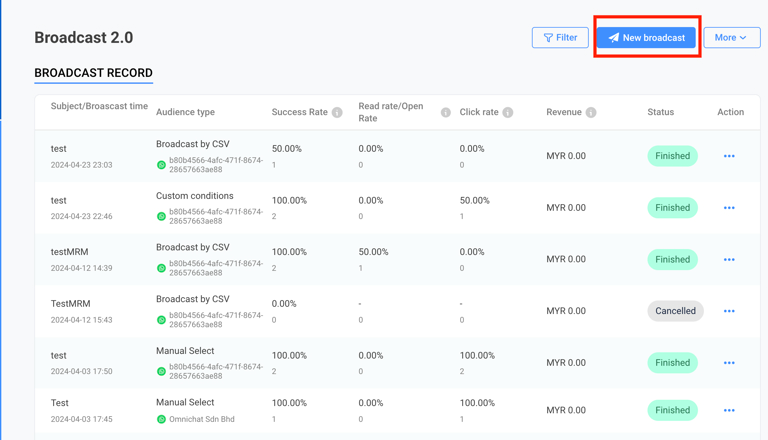
1. Create a New Broadcast
Locate the Broadcast 2.0 section on the left-hand menu bar.
You will see a dashboard with a brief report of the previous broadcast activities once the page loads. Proceed to click on “New Broadcast”.
2. Broadcast Setting
Subject: Add the subject of your broadcast. Please note that the subject is only seen by the platform users and not your contacts.
Broadcast delivery time: You can choose to send “now” (default selection), or schedule your broadcast. You will have to select the date and time of your broadcast if so.
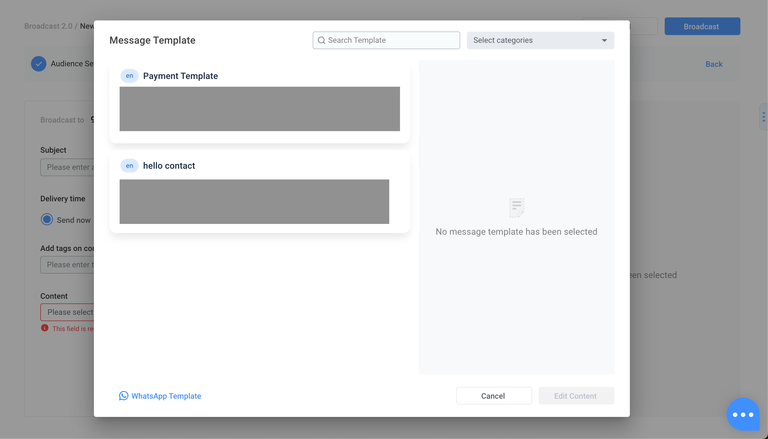
Choose a Message Template: Your available Templates will appear as shown below:
3. Edit Variables
If your template has variables, enter the specific text or values in the “variable 1,” “variable 2,” etc., fields. They will automatically populate {{1}}, {{2}}, and so on.
4. Send
Once you have completed setting everything up, you may send a Test Message to see how it looks from the contact’s perspective. Once you’re happy with your message, click “Broadcast” to send it.
Apply Message Templates Now, Unlock WhatsApp Remarketing Opportunities!
With advertising costs soaring and new traffic becoming harder to acquire, driving repeat purchases from existing customers is a critical challenge for retail brands.
Start applying for your Message Templates today, leverage the power of WhatsApp Broadcast, and boost your customer retention and conversions!
Book a Consultation