
WhatsApp Web lets you access your WhatsApp account from a computer browser at web.whatsapp.com, so you can send messages, share files and manage conversations without installing the desktop app. For WhatsApp Web login, users can scan a QR code or link their browser using their registered phone number.
Managing WhatsApp messages from a computer has become a standard workflow for both individuals and businesses. WhatsApp is a free messaging and video calling app used by over 2 billion people in more than 180 countries, making it one of the most popular messaging apps in the world for private and business communication. With WhatsApp’s Linked Devices feature, users can now connect up to four additional devices to a single WhatsApp account, allowing messages to stay synchronised across browsers and desktop apps without requiring the phone to remain constantly online.
Many users rely on WhatsApp Web to message from a PC without installing software. Simply visit web.whatsapp.com, link your WhatsApp account, and you can reply on a larger screen with faster typing and easier multitasking. WhatsApp Web is useful when you prefer browser-based access on a trusted computer, while WhatsApp Desktop is better for daily use on a personal work computer, offering a more stable app-based experience with features like pinned chats, unread markers, keyboard shortcuts, notifications, and even voice and video calls.
In this 2026 guide, we’ll show you how to use WhatsApp Web and WhatsApp Desktop step by step, explain whether QR-code-free login is possible, compare their key differences, and highlight limitations for business and team use. We’ll also cover how platforms like Omnichat, an official WhatsApp Business Solution Provider (BSP) and Meta partner, go beyond basic messaging with multi-user collaboration, automation, analytics, broadcasts and chatbots to help teams manage customer conversations at scale.
Key Takeaways
1. WhatsApp Web lets users access WhatsApp from a computer browser using a QR code or phone number login, without installing the desktop app.
2. Linked Devices allows WhatsApp Web to keep working even when the primary phone is offline, with up to four additional devices connected to one account.
3. WhatsApp Web supports core features such as messaging, file sharing, conversation management, and voice or video calls on supported browsers.
4. WhatsApp Desktop is a dedicated Windows and Mac app that offers a more stable desktop experience for regular use, including messaging, file sharing, notifications, and voice or video calls.
5. WhatsApp Web and Desktop work well for individual or basic business use, while growing teams may need Omnichat and the WhatsApp Business Platform for automation, broadcasts, customer segmentation, CRM integration, analytics, and multi-user collaboration.
What Is WhatsApp Web and How Does It Work?
WhatsApp Web is the web version of the popular messaging application, WhatsApp, and works in any modern web browser. For PC users, a dedicated desktop app is also available, providing a standalone experience without needing a browser. It allows you to seamlessly sync your WhatsApp account from your mobile phone to your computer’s web browser or desktop app. Once logged in, you can send and receive messages, share files, and manage conversations from your desktop. WhatsApp Web offers an improved user experience with a full-sized keyboard, making it easier to type longer messages efficiently. You can also drag and drop files up to 2GB directly into chats on WhatsApp Web.
How to Use WhatsApp Web Login with a QR Code
Setting up WhatsApp Web is simple. Just follow these easy steps:

- Open web.whatsapp.com in your computer’s browser.
- Launch WhatsApp on your smartphone. If you are using an Android device, open the app to prepare for scanning the QR code and syncing your chats.
- Navigate to Settings (or Menu, depending on your device), then select Linked Devices.
- Tap Link a Device and use your Android device to scan the QR code displayed on your browser.
Once scanned, your WhatsApp chats will automatically synchronise, and you’ll be ready to chat directly from your browser.
Note: WhatsApp Web requires a QR code scan for the initial login to securely link your phone. You must manually log in unless you check ‘Keep me signed in’. You can log out of WhatsApp Web directly from the browser or remotely from your phone. To stay logged in, you need to re-link your phone every 14 days if it hasn’t been active, and linked devices will automatically log out if the primary phone is inactive for 14 days.
How to Use WhatsApp Web Login with a Phone Number
While the traditional way to log into WhatsApp Web is by scanning a QR code, WhatsApp now also allows users to log in using their phone number. Instead of scanning, users can select “Log in with phone number”, enter their registered WhatsApp number on the web interface, and then confirm the login request within the WhatsApp mobile app to link the device.
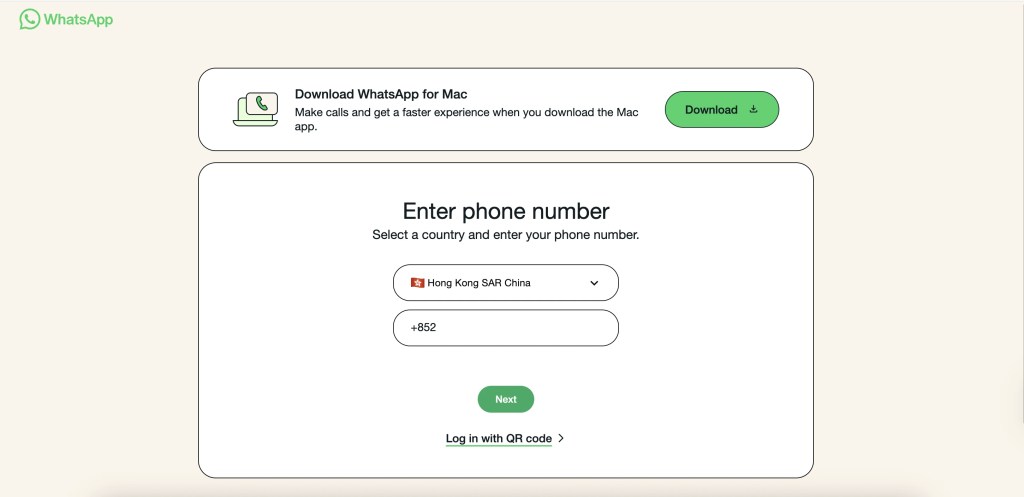
This phone number login option improves convenience and flexibility, making it useful for small business owners and customer support users who often switch between devices. Additionally, WhatsApp ensures that all communications during this login process remain securely encrypted, helping protect user privacy while maintaining a smooth and efficient login experience.
Does WhatsApp Web Work When Your Phone Is Offline?
Yes. Once WhatsApp Web is linked to your account, it can continue sending and receiving messages even when your primary phone is offline. WhatsApp’s Linked Devices feature allows you to connect up to four additional devices to your primary account.
However, linked devices will be logged out if you do not use WhatsApp on your primary phone for more than 14 days. You will then need to link the device again before continuing to use WhatsApp Web.
What Can You Do on WhatsApp Web?
WhatsApp Web lets you use many of WhatsApp’s core features directly from a computer browser. Once logged in, you can send and receive messages, share photos and documents, search and manage conversations, and make WhatsApp voice and video calls without switching back to your phone.
Make Voice and Video Calls on WhatsApp Web
WhatsApp Web now supports voice and video calls directly from supported web browsers, allowing users to make and receive calls from their computer without installing the WhatsApp Desktop app. WhatsApp Web calling is supported on Windows, Linux and macOS and works with supported browsers including Chrome, Edge, Firefox, Safari and Opera.
To make a WhatsApp Web call, open the conversation with the contact you want to call and select the voice or video call icon. Make sure your browser has permission to access your microphone and camera.
Note: As the feature is rolling out gradually, WhatsApp Web calling may not yet be available to every user.
Why Is WhatsApp Web Not Working?
WhatsApp Web may stop loading or connecting because of browser, network or linked-device issues. If WhatsApp Web is not working, try the following:
- Refresh the WhatsApp Web page.
- Check that your internet connection is stable.
- Update your browser to the latest version.
- Clear your browser cache and cookies.
- Log out of WhatsApp Web and link the device again.
- Check whether your primary WhatsApp account and linked devices are still active.
WhatsApp recommends using the latest version of a supported browser, including Chrome, Firefox, Microsoft Edge, Opera or Safari, when accessing WhatsApp Web.
WhatsApp Web QR Code Won’t Scan?
If the WhatsApp Web QR code will not scan, refresh web.whatsapp.com to generate a new QR code and make sure your phone camera can clearly read it. Alternatively, select Log in with phone number on WhatsApp Web and follow the instructions on your primary phone to link the browser without scanning a QR code.
What is WhatsApp Desktop?
WhatsApp Desktop is a standalone application for Windows and macOS that brings WhatsApp’s messaging features directly to your computer. Unlike the web version (WhatsApp Web), which requires a browser and uses a QR code for initial login, the Desktop app does not require a browser and offers an independent, dedicated experience. WhatsApp Desktop is better suited for daily use on a personal work computer, as it launches faster, runs more smoothly, and stays connected even if your phone’s browser closes. You get nearly all the same features—text messaging, voice notes, file sharing, and group chats—in a more stable, dedicated environment.
Watch the official WhatsApp video: How to use WhatsApp Desktop on your computer.
How to Use WhatsApp Desktop (Step-by-Step Guide)

- Download the App: Visit whatsapp.com/download and choose the Windows or Mac version.
- Install: Open the downloaded file and follow the on-screen instructions to install WhatsApp Desktop.
- Launch WhatsApp Desktop: After installation, open the app—you’ll see a QR code on your screen.
- Open WhatsApp on Your Phone: On your Android device, tap Settings > Linked Devices. (For iPhone, tap Settings > Linked Devices.)
- Link Your Device: Tap Link a Device, then point your phone’s camera at the QR code on your desktop app.
- Sync Chats: As soon as the code is scanned, your messages and media start syncing. You’re now ready to send and receive WhatsApp messages straight from your computer.
With WhatsApp Desktop, you can also make voice and video calls directly from your desktop app.
Limitations of WhatsApp Web for Business Accounts and Teams
While WhatsApp Web and Desktop are convenient tools for individual use, businesses may find them limited in several key areas:
- Single User Access: WhatsApp Web and Desktop allow only one user per session. This limitation poses challenges for teams needing simultaneous multi-user access to manage customer interactions efficiently.
- Device Dependency: WhatsApp Web requires your connected smartphone to maintain an active internet connection at all times. This dependency can lead to disruptions if your mobile connection is unstable or your phone’s battery drains.
- Lack of Automation Features: WhatsApp Web lacks essential commercial features such as automation tools, customer segmentation, and personalised messaging options, making it less suitable for scaling customer service or marketing initiatives.
- Broadcast Limitations: The WhatsApp Business App restricts bulk messaging to only 256 contacts who have saved your number, which limits outreach for small businesses aiming to grow their audience.
- No Analytics: The WhatsApp Business App does not provide analytics for measuring campaign results or customer engagement, making it difficult for businesses to track performance.
- Risk of Account Ban: Using a personal WhatsApp account or the WhatsApp Business App to send bulk promotional messages can violate WhatsApp’s terms of service, leading to permanent account bans without recovery options.
Given these constraints, small businesses may quickly outgrow the WhatsApp Business App, while large businesses require more robust solutions. The WhatsApp Business API is designed for medium to large businesses, enabling them to connect with audiences at scale, manage a WhatsApp business account more effectively, and support multi-user access. Additionally, the WhatsApp Business API allows for CRM integration with tools like Salesforce and HubSpot, which is not possible with the standard WhatsApp Business App.
Businesses looking to manage large-scale interactions, automate customer engagement, or support multi-user access will typically benefit from dedicated solutions like the WhatsApp Business Platform that Omnichat expertly unlocks and enhances.
Omnichat vs WhatsApp Web: Multi-User, Multi-Device Support for Teams
While WhatsApp Web is a convenient tool for individual users, it quickly runs into limitations when businesses need multiple team members to manage customer conversations efficiently. As a messaging app, WhatsApp Web is often used for customer engagement and automation, and it can also be integrated with third-party productivity tools for enhanced functionality. That’s where Omnichat steps in—built specifically for teams that require scale, visibility, and control.

- True Multi-User Access: WithOmnichat’s WhatsApp Business API, multiple team members can access the same WhatsApp account at the same time. No more “one user per device” restriction—everyone can stay on the same page, collaborate in real time, and respond without delay.
- Multi-Device Flexibility: Whether your team is working from desktops, laptops, or mobile devices, Omnichat keeps all interactions perfectly in sync. There’s no risk of missing a message just because someone closed a tab or lost their phone connection.
- Centralised Conversation Management: Forget switching between multiple WhatsApp sessions or devices. With Omnichat’s unified dashboard, all your WhatsApp conversations (plus other messaging channels) live in one place. The multi-channel customer service interface helps your team stay organised, assign chats, and respond faster.
- Built-In Collaboration Tools: Omnichat makes teamwork easy with smart features like conversation auto-assignment, internal notes, and tagging. That means smoother handoffs, fewer misunderstandings, and better customer experiences.
- Scalability and Analytics: As your business grows, so do your needs. Omnichat provides built-in performance tracking and analytics—like response times, resolution rates, and team workloads—so you can continuously improve. In contrast, WhatsApp Web provides no reporting tools at all.
In short, if your team handles even a moderate volume of customer chats, Omnichat helps you go far beyond the limitations of WhatsApp Web. It’s built to scale with your business, support your team, and deliver better customer service—right out of the box.
WhatsApp Automation, Broadcasts, and Chatbots with Omnichat
Omnichat extends the power of WhatsApp beyond basic messaging by adding automation and marketing tools that are purpose-built for business growth.
- Chatbot Automation: Deliver 24/7 customer service with automated replies, intelligent keyword triggers, and customisable chatbot flows. Whether it’s answering FAQs, collecting order details, or guiding users through a purchase, Omnichat’s chatbot reduces response time and boosts satisfaction. You can also create automated conversations to streamline customer journeys and improve engagement.
- Broadcast Messaging: Easily create and send personalised promotions, campaign updates, and service notifications to segmented customer lists—all within WhatsApp. It’s a powerful way to reach thousands of customers instantly, without the noise of traditional email or SMS. Note that WhatsApp broadcast messaging is limited to 256 contacts per broadcast when using the standard app.
Businesses can subscribe to premium services like Meta Verified for WhatsApp Business to unlock additional features, connect more devices, and access enhanced account management options.
Unlike sending bulk messages from a personal WhatsApp account, which may lead to bans, Omnichat ensures compliance with WhatsApp’s Business API guidelines and reduces the risk of account suspension.
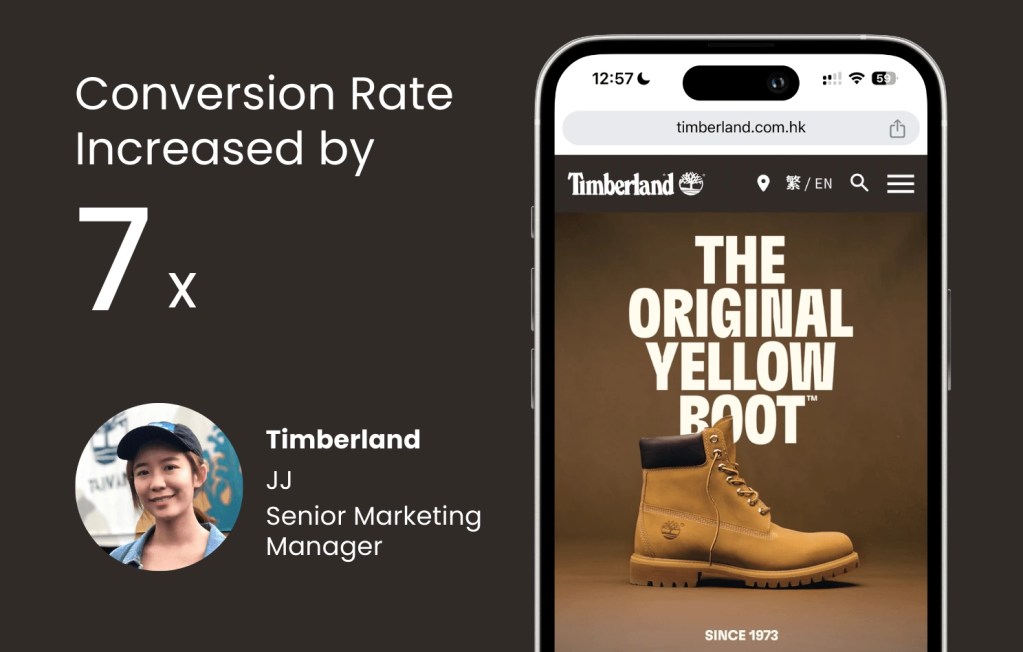
Case Example: Timberland used Omnichat’s WhatsApp broadcast campaigns to drive higher engagement and conversion—achieving a 7x increase in conversion rate. That’s the kind of measurable impact smart automation can deliver. Curious how other brands are using WhatsApp automation to scale their results? Explore more Omnichat client success stories and see how leading businesses turn chats into revenue.
Final Thoughts: Choosing the Right WhatsApp Setup in 2026
Whether you’re a regional retail chain or a fast-growing e-commerce brand, understanding the differences between WhatsApp Web/Desktop and an enterprise-grade solution like Omnichat is essential for scaling customer engagement in 2026.
If your team needs multi-user access, automation, compliance, and a single source of truth for customer conversations, relying on basic WhatsApp tools will quickly become a bottleneck.
Start with a platform built for omnichannel growth and measurable business results.
Book a Consultation