
Key Takeaways
1. WhatsApp backups are stored through your Google Account on Android and iCloud on iPhone. Create a backup under Settings > Chats > Chat Backup and enable automatic backups for regular protection.
2. To restore a WhatsApp backup, use the same phone number and Google Account or iCloud account used to create it. WhatsApp will prompt you to restore your chat history during setup or reinstallation.
3. WhatsApp Business backup works similarly to personal WhatsApp, while larger teams may need centralised chat history, shared access and conversation records.
4. Omnichat provides cloud-based WhatsApp chat history management with multi-user access, conversation record export and easier retrieval of customer chat data for sales and support teams.
5. End-to-end encrypted WhatsApp backups can be protected with a passkey, password or 64-digit encryption key, adding an extra layer of privacy and security.
WhatsApp backs up chat history to your Google Account on Android and iCloud on iPhone. To create a backup, go to WhatsApp > Settings > Chats > Chat backup. To restore WhatsApp chats, use the same phone number and cloud account that created the backup, then follow the restore prompt when reinstalling WhatsApp.
For WhatsApp Business users, the backup process is similar, while businesses that need shared access and centralised conversation history can use the WhatsApp Business Platform with a solution provider such as Omnichat.
WhatsApp backup helps protect your messages, photos, videos and documents when changing phones, reinstalling WhatsApp or recovering from a device issue.
This guide explains how to back up and restore WhatsApp chats on Android and iPhone, including Google Account and iCloud backups, WhatsApp Business backup, chat transfer between devices and end-to-end encrypted backup. For businesses, we’ll also explain how Omnichat supports centralised WhatsApp conversation history and multi-user access through the WhatsApp Business Platform.
How to Back Up WhatsApp Personal Chats (iPhone & Android)
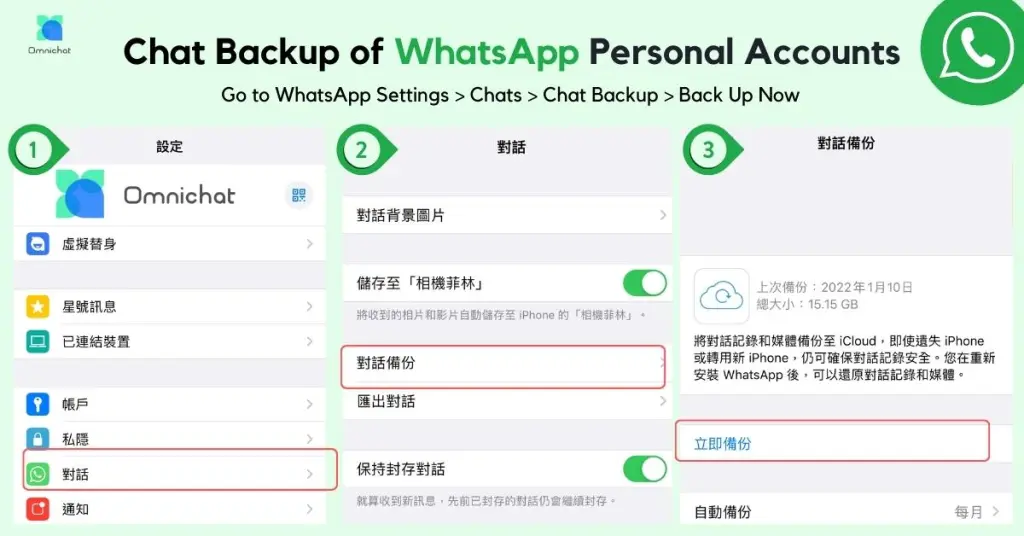
Backing up your WhatsApp chat history ensures you don’t lose your conversations, media, or files if you change phones or encounter a system error. Here’s how to do it depending on your device:
How to Back Up WhatsApp on iPhone (iCloud)
To back up WhatsApp on an iPhone:
1. Open WhatsApp and go to Settings (bottom right).
2. Tap Chats > Chat Backup.
3. Tap Back Up Now to manually back up your chats to iCloud.
4. Under Auto Backup, choose a frequency (Daily, Weekly, Monthly) to set up automatic backups.
5. Toggle on Include Videos if you want to back up media files too.
⚠️ Make sure iCloud Drive is enabled and that you have enough storage space on your iCloud account, otherwise the WhatsApp backup may fail.
How to Back Up WhatsApp on Android (Google Account / Google Drive)
On Android, WhatsApp chat backups are saved to the Google Account linked to your device. To back up WhatsApp, open WhatsApp > Settings > Chats > Chat backup, then choose your Google Account and tap Back up. You can also set recurring backups and choose whether to include videos or use mobile data.
To back up WhatsApp on Android:
- Open WhatsApp and tap the three-dot menu (top-right corner), then go to Settings.
- Tap Chats > Chat Backup.
- Tap Back Up to immediately create a Google Drive backup.
- Under Back up to Google Drive, choose how often to back up (Daily, Weekly, Monthly).
- Select the Google account you’d like to use for backup.
- Choose whether to back up over Wi-Fi only or also include mobile data.
Ensure your Google account is connected and there’s enough Google Drive storage available. Otherwise, backup may not complete. You can restore these backups when reinstalling WhatsApp or setting up a new device — making it easier to transfer your chat history safely.
For more information and troubleshooting tips, visit the WhatsApp Help Centre. Want to manage WhatsApp from your browser or computer? Check out our step-by-step guide on using WhatsApp Web.
How to Restore WhatsApp Backup on iPhone & Android
To restore a WhatsApp backup, you generally need to use the same phone number and cloud account used to create the backup. Android restores WhatsApp chats from your Google Account, while iPhone restores chats from iCloud.
How to Restore WhatsApp Backup on iPhone
- Confirm that an iCloud backup exists under WhatsApp > Settings > Chats > Chat Backup.
- Install or reinstall WhatsApp.
- Verify the same phone number and Apple ID used for the backup.
- Tap Restore Chat History when prompted.
Messages sent or received after the latest successful backup cannot be restored.
How to Restore WhatsApp Backup on Android
- Make sure the Google Account containing your WhatsApp backup is added to your Android phone.
- Install or reinstall WhatsApp and verify the same phone number used for the backup.
- When WhatsApp detects an available backup, tap Restore.
- Wait for your chat history and media to finish restoring.
WhatsApp Business Backup: How to Back Up & Restore Chats
WhatsApp Business App uses a similar backup process to personal WhatsApp:
- Android: Open WhatsApp Business > Settings > Chats > Chat backup to back up chats using your Google Account.
- iPhone: Open WhatsApp Business > Settings > Chats > Chat Backup, then tap Back Up Now or enable automatic iCloud backups.
- Restore: Reinstall WhatsApp Business using the same phone number and associated Google Account or Apple ID, then follow the restore prompt.
For individual business owners, these device-based backups may be sufficient. However, businesses with multiple customer service or sales users often require centralised conversation history, shared access, and data export instead of relying on a single device backup.
Cloud-Based WhatsApp Chat Backup with Omnichat
As an official WhatsApp Business Platform (API) Solution Provider, Omnichat helps businesses centrally manage and retain WhatsApp customer conversations. Unlike device-based WhatsApp backups stored in iCloud or Google Drive, Omnichat provides cloud-based chat history management with centralised access, multi-user collaboration, conversation record export, and easier retrieval of customer chat data.
| WhatsApp Business App | WhatsApp Business Platform with Omnichat | |
| Primary use | Small business / device-based messaging | Multi-user business communication |
| Chat management | Primarily phone/account based | Centralised team access |
| Backup / records | Google Account or iCloud | Centralised chat history management and conversation records |
| Team access | Limited | Multiple authorised users |
| Business data use | Basic chat history | Supports export, retrieval and CRM/CDP workflows |
With Omnichat:
- Customer conversations and chat history can be centrally managed in the cloud.
- Multiple authorised users can access and manage conversations across devices, making it suitable for sales and support teams operating in shifts or across locations.
- Conversation records can support reporting, customer service management and CRM/CDP workflows.
Businesses can also streamline customer interactions with Omnichat’s WhatsApp chatbot solution for automated replies and lead capture, while the Social Customer Data Platform (Social CDP) helps unify customer identities and improve personalisation across WhatsApp and other channels.
For businesses that require multi-user access and centralised chat history management, Omnichat’s WhatsApp Business API integration provides a more scalable approach than relying on device-based backups alone.
How to Transfer WhatsApp Chats from iPhone to Android

If you’re switching from an iPhone to an Android device, transferring your WhatsApp chat history is now possible, but only under specific conditions. Here’s what you need to prepare before starting the transfer:
Requirements Before You Begin
- Your new device must be:
- A Samsung phone, Google Pixel, or any Android 12+ device (including Xiaomi, OnePlus, Oppo, etc.)
- WhatsApp iOS version: 2.21.160.17 or above on the old iPhone
- WhatsApp Android version: 2.21.16.20 or above
- Samsung Smart Switch (v3.7.22.1+) OR Google’s Data Restore Tool (pre-installed on Pixel and Android 12+)
- USB-C to Lightning cable (or compatible adapter)
- You must use the same phone number on the new device
The Android device must be either brand new or factory reset
Step-by-Step: Transferring WhatsApp Chats
- Reset your Android 12+ or Google Pixel device, or set it up as a new phone.
- Begin device setup and select “Restore data” when prompted.
- On the Copy apps and data screen, connect your iPhone and Android device using the cable.
- On your iPhone, tap “Trust” when the pop-up appears.
- Keep the iPhone unlocked throughout the transfer.
- When prompted, scan the QR code on the Android screen using your iPhone’s camera to open WhatsApp and begin data export.
- Follow the instructions to complete the chat history export.
- Once finished, disconnect the cable.
Open WhatsApp on your new Android device and log in using the same phone number. Tap “Restore your chats” when prompted.
Note: Media files and chat history will transfer, but peer-to-peer payment messages or call logs may not be included. This feature offers a convenient way to preserve your conversations when moving from iOS to Android, with no need to rely on third-party tools or cloud-based exports.
How to Transfer WhatsApp Chats from iPhone to Samsung
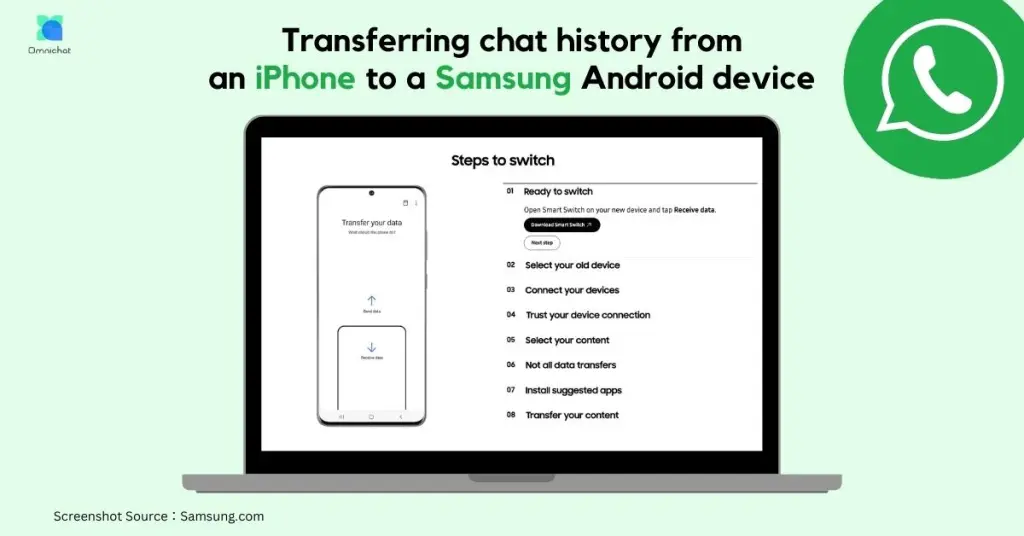
If you’re switching from an iPhone to a Samsung Android device, you can transfer your WhatsApp chat history, including personal and group messages, media, and settings, directly during device setup. Here’s how to do it.
Requirements Before You Begin
To transfer successfully, ensure the following:
- Your Samsung device has Samsung Smart Switch installed (version 3.7.22.1 or above)
- Your iPhone is running WhatsApp iOS version 2.21.160.17 or later
- Your Samsung phone will run WhatsApp Android version 2.21.16.20 or later (after the transfer)
- A USB-C to Lightning cable (or suitable adapter) is available
- You are using the same phone number on both devices
- The Samsung phone must be new or factory reset
Step-by-Step: Transferring WhatsApp from iPhone to Samsung
- Once complete, you’ll see a confirmation message and your conversations will appear as usual..
- Turn on your Samsung phone and begin the setup process.
- When prompted to copy apps and data, connect your iPhone to the Samsung device via cable.
- Follow the Samsung Smart Switch instructions on screen.
- When prompted, use your iPhone camera to scan the QR code shown on the Samsung device. This will open WhatsApp on your iPhone to begin data export.
- Tap Start on the iPhone and wait for the process to complete. Keep your iPhone unlocked during the transfer.
- Continue setting up your Samsung phone.
- Once you reach the home screen, open WhatsApp.
- Log in using the same phone number from your iPhone.
- When prompted, tap Import to restore your chat history.
What Can and Cannot Be Transferred
Transferred:
- Account info
- Profile photo
- Individual and group chats
- Full chat history and media
- App settings
Not transferred:
- Call history
- Display name
- Status updates
Pro-Tip: This transfer works best during the initial setup of your Samsung device. If you’ve already set up the device, you may need to factory reset it to restart the process.
How to Transfer WhatsApp Chats from Android to iPhone
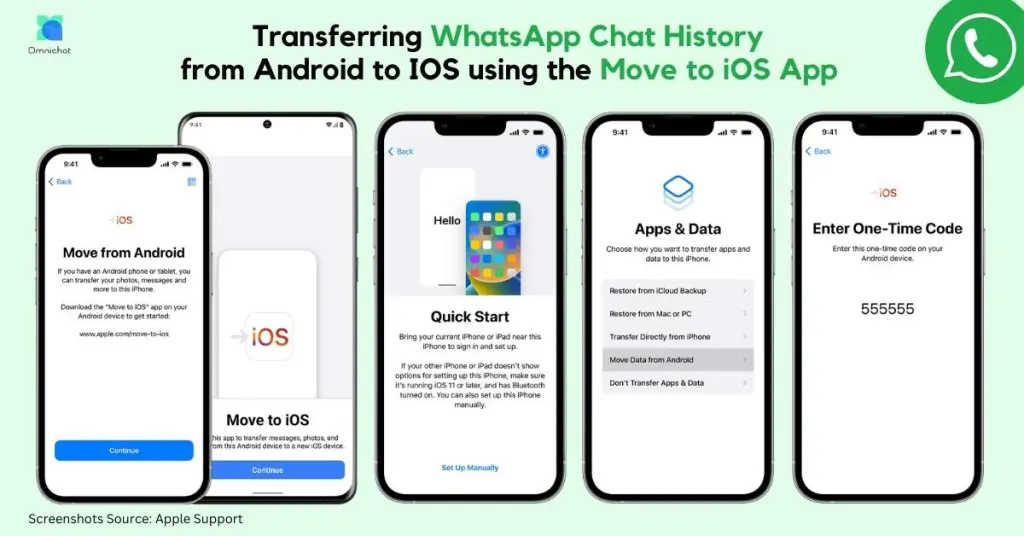
If you’re switching from Android to iPhone, you can now transfer your WhatsApp chat history, including messages, photos, and videos, using Apple’s Move to iOS app. However, this transfer is only supported under specific conditions.
Requirements Before You Begin
Make sure the following conditions are met:
- Your Android device is running Android OS 5 (Lollipop) or above
- Your iPhone is running iOS 15.5 or above
- You have the Move to iOS app installed on your Android phone
(⚠️ Do not use other migration tools — they may cause errors) - WhatsApp Android version 2.22.7.74 or later installed on the Android device
- WhatsApp iOS version 2.22.10.70 or later installed on the iPhone (after transfer)
- You are using the same phone number on both devices
- Your iPhone is either new or factory reset
- Both phones are plugged into power
- Both phones are on the same Wi-Fi network
(or connect your Android device to the iPhone’s hotspot)
Step-by-Step: Transferring WhatsApp from Android to iPhone
- On your Android phone, open the Move to iOS app and follow the prompts.
- A code will appear on your iPhone. When prompted, enter this code on the Android phone.
- Tap Continue and follow the on-screen instructions.
- On the Transfer Data screen, select WhatsApp.
- Tap START on your Android phone. WhatsApp will prepare your data for export and log you out once it’s ready.
- Tap NEXT to return to the Move to iOS app.
- Tap CONTINUE to begin transferring the data to your iPhone. Wait until the process is confirmed as complete.
- Once the transfer is done, install the latest version of WhatsApp from the App Store on your iPhone.
- Open WhatsApp and log in using the same phone number used on your old device.
- When prompted, tap Start to allow the chat history to import.
- Complete the device setup, and your WhatsApp chats should now appear on your iPhone.
What Can and Cannot Be Transferred
Transferred:
- Account information
- Profile photo
- Individual and group chats
- Message history
- Media files (photos, videos)
- WhatsApp settings
Not transferred:
- Call history
- Display name
⚠️ Note: You cannot manually access WhatsApp files using the Files app or attempt to move the WhatsApp folder separately. This method isn’t supported and may corrupt the migration.
What Is End-to-End Encrypted WhatsApp Backup?
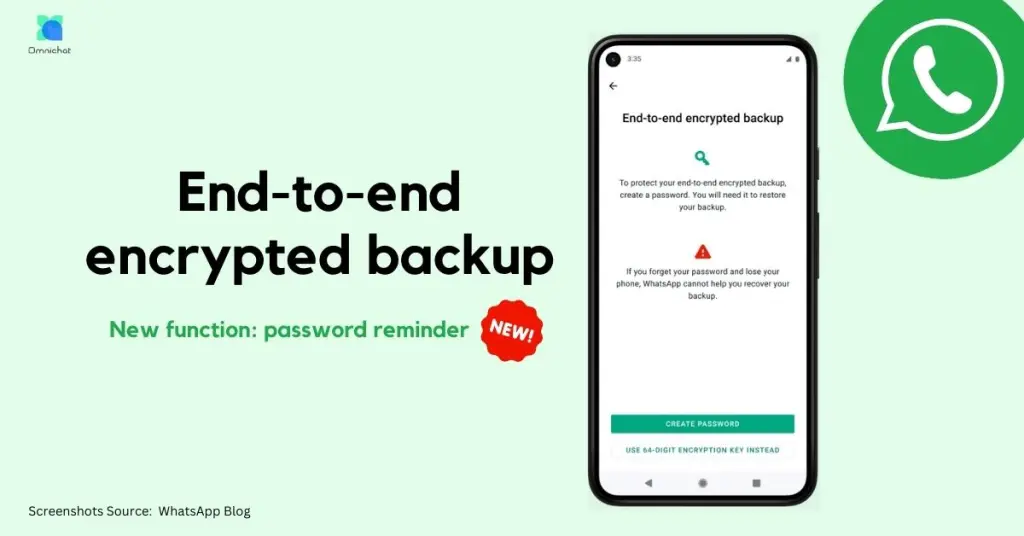
End-to-end encrypted backup adds extra protection to your WhatsApp chat history. Once enabled, your backup is encrypted so that neither WhatsApp nor your cloud provider can access its contents.
You can protect the backup using:
• A passkey
• A password
• A 64-digit encryption key
The feature is optional and must be turned on manually. If you lose access to your passkey, password or encryption key and can no longer access WhatsApp, you may not be able to restore the backup.
For users handling sensitive personal or business conversations, this provides an extra layer of privacy and security.
How to Enable End-to-End Encrypted Backup on WhatsApp
Turning on end-to-end encrypted backup is simple and gives your chat history an extra layer of security. Just follow these steps:
Step-by-Step Instructions
- Open WhatsApp and go to Settings.
- Tap Chats > Chat Backup > End-to-end Encrypted Backup.
- Tap Turn On, then create a passkey, password or 64-digit encryption key.
- Tap Create to confirm.
- Wait while WhatsApp prepares your encrypted backup. For best results, keep your phone connected to a power source during this process.
⚠️ Important: You need access to your passkey, password or encryption key to restore an end-to-end encrypted backup. WhatsApp cannot send you a copy of your password or encryption key, reset it, or restore the backup for you if you lose access. Store your backup credentials securely.
Password Reminder for Encrypted WhatsApp Backups
To help users avoid losing access to their encrypted backups, WhatsApp has introduced a password reminder feature in the latest versions of WhatsApp for both iOS and Android.
This feature prompts users to re-enter their encrypted backup password periodically, especially when accessing or restoring their backup from Google Drive or iCloud. It’s a helpful way to ensure you still remember your password or 64-digit encryption key.
Important Note: If you forget your password or key, you won’t be able to restore your encrypted backup. For privacy reasons, WhatsApp cannot reset your password or recover your data.
While this reminder feature doesn’t let you reset a forgotten password, it encourages users to verify and remember their credentials before it’s too late, especially useful if you’re reinstalling WhatsApp or changing phones.
Book a Consultation