WhatsApp auto reply is an automatic message that answers customers as soon as they write to a business, whether it is a greeting, an away message or a chatbot menu. WhatsApp is the most widely used instant messaging tool in Hong Kong, with a penetration rate of over 80% according to market research, and a primary channel for business-to-customer communication, sales, and customer service. Studies indicate that up to 70% of consumers are more inclined to purchase from brands they can message directly.
💡Key Takeaways: WhatsApp Auto Reply
– WhatsApp auto reply sends a pre-set message the moment a customer writes to a business, so every enquiry gets an instant answer, even outside business hours.
– The free WhatsApp Business app has three built-in tools in its Tools tab: greeting messages, away messages and quick replies.
– A personal WhatsApp account has no built-in auto reply, so businesses should switch to the free WhatsApp Business app rather than rely on unofficial third-party apps.
– The WhatsApp Business API adds chatbots, keyword auto replies and team routing; Meta charges per message, with 1,000 free service messages per phone number each month.
– Omnichat connects the WhatsApp Business API to a no-code chatbot and keyword auto reply, helping OPTICAL 88 handle 72% of routine enquiries automatically.
Given that a large portion of customer inquiries are repetitive, setting up WhatsApp auto reply can accelerate response times and reduce the customer service workload. This guide shows you how to set up auto replies in the free WhatsApp Business app, gives message examples for business, and explains when to move to a WhatsApp Business API chatbot, with practical case studies.
What is WhatsApp Auto Reply?
WhatsApp auto reply (also called WhatsApp automatic reply) lets a business pre-set the message, the recipients and the time of a reply, so the system answers customers automatically when they send a message. Merchants can use basic WhatsApp auto reply via the WhatsApp Business App, or use advanced WhatsApp Chatbot and keyword auto reply by integrating the WhatsApp Business API through a third-party provider.
How to Set Up WhatsApp Business Auto Reply in the App?
The free WhatsApp Business app has two automatic replies, greeting messages and away messages, plus quick replies for saved answers. You will find all three in the app’s Tools tab.
How to Set Up a Greeting Message?
The system automatically sends a greeting message when a customer contacts the merchant for the first time, or after 14 days of inactivity since their last message.
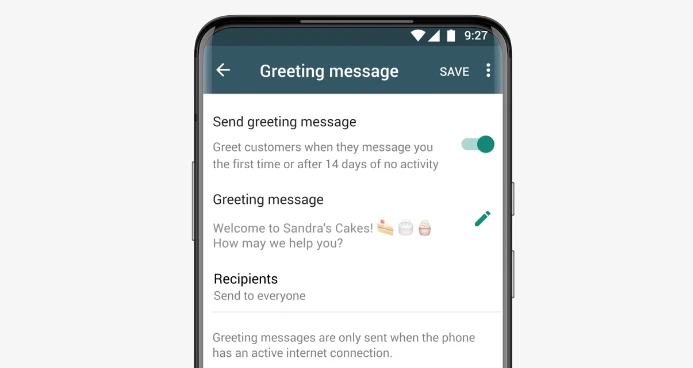
1. From the “Tools” tab, tap “Greeting message.”
2. Turn on “Send greeting message.”
3. Tap “Greeting Message” to edit the text, then tap “OK.”
4. Tap “Recipients” and select one of the following options:
- Everyone
- Anyone not in address book: Send to all non-contacts.
- Everyone except…: Send to all customers, excluding selected contacts.
- Only send to…: Send only to selected contacts.
5. Tap “Save.”
Note: greeting messages switch off automatically when you connect Meta Business Agent, Meta’s AI agent for the WhatsApp Business app, which is currently offered to select businesses in limited countries (WhatsApp Help Center).
How to Set Up an Away Message?
The system automatically sends an away message when the business is closed or the staff is busy. Merchants can include an estimated response time in the message, managing customer expectations.

1. From the “Tools” tab, tap “Away message.”
2. Turn on “Send away message.”
3. Tap “Away Message” to edit the text, then tap “OK.”
4. Tap “Schedule” and select one of the following options:
- Always send: send at all times.
- Custom schedule: Send only during specified times.
- Outside of business hours: Send only outside of business hours (business hours must first be set in the Business Profile).
5. Tap “Recipients” and select one of the following options:
- Everyone
- Anyone not in address book: Send to all non-contacts.
- Everyone except…: Send to all customers, excluding selected contacts.
- Only send to…: Send only to selected contacts.
6. Tap “Save.”
How to Set Up Quick Replies?
Quick replies let you save answers to common questions, such as opening hours, delivery fees or payment methods, and send them with a shortcut instead of typing each time. Unlike greeting and away messages, they are not sent automatically: your team picks the reply in the chat.
1. From the “Tools” tab, tap “Quick replies.”
2. Tap “+” to add a new quick reply.
3. Enter the message (you can also attach an image or video) and a shortcut, for example /hours.
4. Tap “Save.”
In any chat, type “/” to see your saved replies, then tap one to send it.
Can You Set Auto Reply on a Personal WhatsApp Account?
No. A personal WhatsApp account has no built-in auto reply, greeting or away message, so you need the free WhatsApp Business app to send them. You can move your existing number to the WhatsApp Business app and restore your chat history from a backup.
Third-party auto reply apps for Android work by reading your notifications and replying for you. They are not WhatsApp products, and automated messaging from unofficial tools can get a number blocked or banned. Once several people need to answer from one number, the official WhatsApp Business API is the safer next step.
WhatsApp Auto Reply Message Examples for Business
A good WhatsApp auto reply message thanks the customer, says when they will hear back and gives one next step. Keep it to two or three short lines in your brand’s tone. Copy and adapt these five examples:
| Type | When to use it | Example message |
| Greeting message | A customer’s first message | Hi, thanks for messaging [Brand]! Tell us what you are looking for and our team will reply shortly. Browse our latest offers here: [link] |
| Away message (after hours) | Outside business hours | Thanks for your message! We are open Monday to Friday, 10am to 7pm, and will reply first thing on the next working day. |
| Holiday message | Public holidays and office closures | Happy holidays! Our office is closed from [date] to [date]. We will reply to every message when we are back on [date]. |
| Booking enquiry | Salons, clinics, restaurants | Thanks for reaching out! Pick a time that suits you here: [booking link]. We will confirm your booking on WhatsApp within one working day. |
| Busy period | Sales, launches, peak hours | Thanks for your patience! We are receiving more messages than usual, so replies may take up to 2 hours. Track your order here: [link] |
With an auto reply bot on the WhatsApp Business API, the same messages can carry buttons such as “Latest offers” or “Book a service”, and each tap leads the customer to the right answer.
What are The Limitations of WhatsApp Business App Auto Reply?
According to a Zendesk research report, 74% of consumers now expect brands to provide 24/7 service, and 88% expect response times to be even faster than last year. Although the auto-reply feature built into the WhatsApp Business App enhances customer service response speed, as a basic free tool, it still has the following limitations in practical business application:
Limited Response Scenarios
The built-in auto-reply only sends a single greeting or away message template, making its use case extremely narrow. It does not support personalised responses based on specific customer inquiries, interest tags, or purchase history, severely lacking conversational depth.
Inability to Follow Up
The WhatsApp Business App only supports one-time replies and cannot initiate subsequent conversation flows or proactively follow up with customers. Once a conversation moves into a complex inquiry stage, businesses must wait for a live agent to intervene.
Cannot Meet Enterprise Operational Needs
For businesses aiming for high-efficiency expansion, the built-in features have clear operational limits. For example, the app links only up to four devices (up to 10 with a paid Meta Verified or Meta One subscription) and has no routing rules, impacting team collaboration and efficiency. It also lacks necessary data analytics and tracking functions, making it impossible to effectively measure key performance indicators like message volume or engagement rates.
How To Set Up Auto Reply via Omnichat’s WhatsApp Business API?
Businesses seeking to implement WhatsApp marketing automation, enabling a 24/7 Chatbot to interact with customers and answer questions, and allowing multi-team account management, should integrate the WhatsApp Business API through a third-party provider (e.g., Omnichat) to unlock a series of advanced features designed specifically for commercial use. Meta charges for each message a business delivers on the API, but the first 1,000 service messages per phone number each month are free (Meta pricing).
WhatsApp Auto Reply Bot (Chatbot) Setup Tutorial
An auto reply bot answers customers with buttons and cards, so they can find offers, services or bookings without waiting for an agent.
1. Go to the Omnichat backend > Select Advanced Automation > Bot Builder 2.0
2. Click “+New Chatbot” > Name the Chatbot and select the WhatsApp platform > Start Setup
3. Click the + button to add a block > Add a regular card (options include text, photo, coupon, etc.).
4. Enter the relevant message (You can use {…} to insert personalisation parameters, such as customer name, member ID, or custom attributes).
5. Add a Button > Enter the Button Name.
6. Select the button action upon clicking. Options include:
- Reply Block: Clicking the button will take customers to the designated card.
- Open URL: When a customer clicks the button, it will redirect to the specified URL.
7. Add Additional Actions (Optional). Options include:
- Add Tag: When the customer clicks the button, the tag is automatically applied to the customer.
- Save as Custom Attribute (Add-on Feature): When the customer clicks the button, it will add the preset custom attribute to the customer automatically. (See tutorial here).
Function: This records customer behavioural data during the interaction, aiding in more precise future marketing and allowing broadcasts to customers with specific custom attributes.
8. Click “Save” after configuration is complete.

WhatsApp Keyword Auto Reply Setup Tutorial
1. Go to the Omnichat backend > Select Advanced Automation > Keyword Autoreply 2.0.
2. Click “+ New Group” > Name the “Group Name” and select the target channel as WhatsApp > Save.
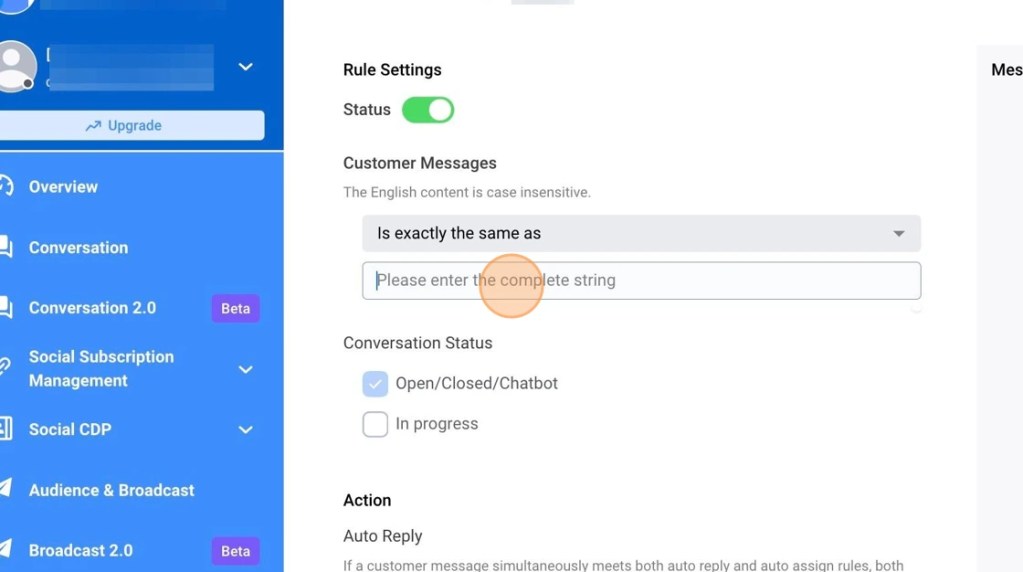
3. Once you have set up your group, select “Add New Rule” to set up the WhatsApp auto reply trigger conditions and content:
- Status: Can enable or disable this keyword condition.
- Customer Message:Insert the Keyword you would like your contact to fill to trigger the rule (options include: contains all, contains any, is exactly the same as, or any content).
- Action:Select the type of actions you would like to take once the rule is triggered (options include: text, chatbot block, image, sticker, or do not send any messages).
4. Click “Save” once you have completed your settings.
WhatsApp Chatbot Auto Reply Case Studies
OPTICAL 88: WhatsApp Chatbot and Keyword Auto Reply
OPTICAL 88 utilises Omnichat’s 24/7 chatbot, setting up interactive buttons to answer customer inquiries such as “Latest Offers,” “Professional Services,” or “Other.” When customers select a button, relevant information is displayed, effectively handling 72% of routine customer enquiries. This allows the customer service team to focus on other complex inquiries or tasks, building more meaningful customer interactions.

Furthermore, the keyword auto reply feature provides instant, accurate responses. Whether customers need to modify bookings, locate stores, or receive updates during significant events such as Typhoon No. 8 situations, customers can receive immediate updates about their booking status once inputting the related keywords, demonstrating how automation can enhance both operational efficiency and customer satisfaction simultaneously.
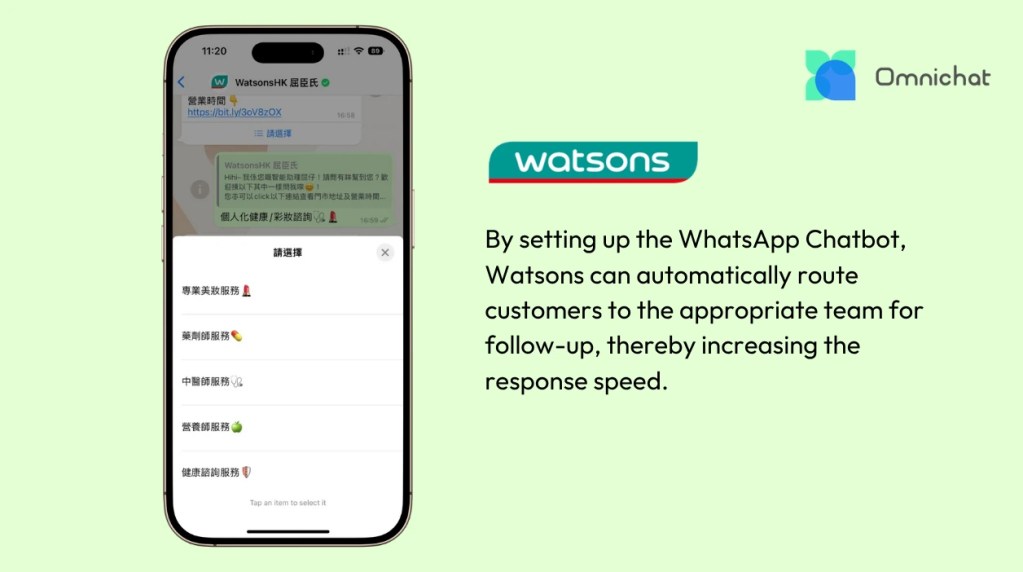
Watsons: WhatsApp Chatbot Automatically Routes Customers to the Appropriate Team
Customers can instantly book services like beauty consultations, pharmacist services, or Chinese medicine practitioner appointments via Watsons’ WhatsApp, or get the latest information quickly. Using the WhatsApp Chatbot, the system automatically routes inquiries (e.g., booking a pharmacist service) to the corresponding team for follow-up. This ensures that pharmacists at different branches can provide immediate consultation, speeding up response times.
Utilising Omnichat’s WhatsApp Business API, you can achieve: Chatbot auto reply, keyword auto-assignment, sales staff performance tracking, abandoned cart reminders, multi-channel message integration, and multi-user login management—all designed to help you capture every conversational sales opportunity!
Book a Consultation