

WeChat Web lets eligible users access WeChat through a browser using QR code login, while WeChat Desktop is a downloadable app for Windows and Mac. WeChat Web is useful for quick browser access, but some accounts may be restricted from using it. If you cannot log in to WeChat Web, the official Desktop app is usually the better option.
Both versions let you manage conversations and transfer files from your computer, while WeChat Desktop offers broader features such as chat backup, Moments and more desktop tools. With more than 1.4 billion combined monthly active users across Weixin and WeChat, the platform remains widely used for personal communication and business engagement. Users can also interact with WeChat Official Accounts, Mini Programs and other services within the ecosystem.
💡Key Takeaways: WeChat Web & WeChat Desktop Guide
1. WeChat Web lets eligible users access WeChat through a browser using QR code login, without installing desktop software.
2. WeChat Web login does not normally use a phone number and password. Users scan the QR code with the WeChat mobile app and confirm the login on their phone.
3. Some accounts may see “WeChat Web Service Unavailable for This Account.” If browser access is restricted, the official WeChat Desktop app for Windows or Mac is the better alternative.
4.WeChat Desktop offers broader features than the browser version, including chat backup, file transfer, Moments, Official Accounts and more multitasking tools.
5. Businesses can use Omnichat with WeChat Official Accounts to centralise customer conversations alongside WhatsApp, Instagram, Facebook Messenger and LINE, helping teams manage enquiries more efficiently.
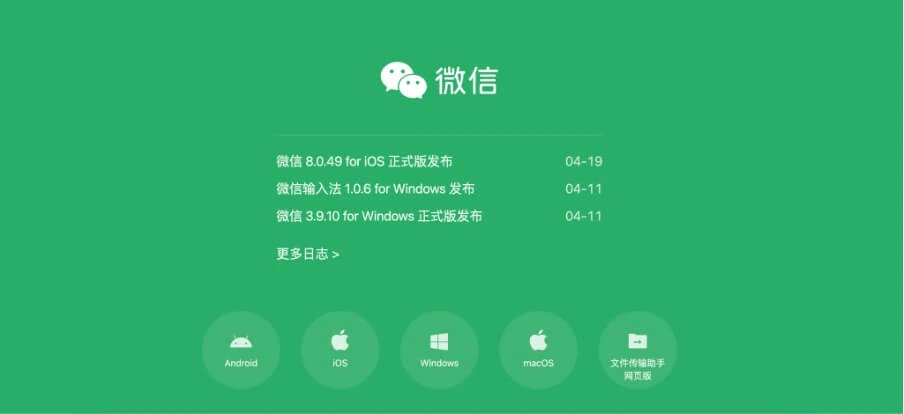
Whether you want quick WeChat online access through a browser or a more complete WeChat Desktop experience on Windows or Mac, this guide covers login, download, key features and common troubleshooting issues.
What is WeChat Web and WeChat Desktop?
Both WeChat Web and WeChat Desktop let you send messages, receive files and stay connected from your computer. The main difference is that WeChat Web runs in a browser, while WeChat Desktop is a downloadable app for Windows and macOS with broader features and a more complete desktop experience.
What is WeChat Web?
WeChat Web is the browser version of WeChat. You can log in by scanning a QR code with the WeChat mobile app, making it useful for quick access without installing software.
If you see a message saying you cannot log in to WeChat for Web for security reasons, use the official WeChat Desktop app instead.
What is WeChat Desktop?
The WeChat Desktop app for Windows and macOS provides a more complete experience, with features such as chat history backup and migration, file sharing, Moments, Official Accounts and additional desktop tools. It is better suited to frequent users and professionals who use WeChat regularly on a computer.
WeChat Web vs. Desktop: Key Differences
| Feature | WeChat Web | WeChat Desktop (Windows/Mac) |
| Installation Required | No | Yes |
| Chat History Backup | No | Yes |
| Post/View Moments | View only (limited) | Full access and interaction |
| File Transfer & Screenshots | Limited | Full desktop file sharing |
| Stable Connection | Occasional logout | More secure and stable |
| Login Duration | Session-based (logs out quickly) | Persistent login |
Key Features of WeChat Web and WeChat Desktop
Both WeChat Web and Desktop offer core communication functions, but the desktop version for Windows or Mac unlocks additional tools that streamline workflow and social interaction.
Chat Messaging on Web and Desktop
You can send and receive text messages, images, voice notes, and documents. Both versions sync with your phone in real time, ensuring you never miss a message.
Note: WeChat Web login sometimes triggers a security warning. If you see “For the security of your account, you cannot log in to WeChat for Web”, it means web access is temporarily restricted. WeChat recommends using the desktop app instead.
Chat Backup and Sync

With the WeChat for Windows or Mac app, you can back up conversations from your phone to your PC and restore them later. This is crucial for users managing customer conversations or important personal chats.
Moments on Desktop
The WeChat Desktop app allows users to browse, post, like and comment on Moments from a larger screen. Recent desktop updates have also added features such as pinning content in Moments and using images or stickers in comments, making the desktop experience more complete for users who regularly interact with WeChat’s social feed.
Official Accounts Access
You can easily access subscription and service accounts from the desktop version. This includes news, promotions, and customer support channels. Service accounts are particularly useful for brands offering e-commerce, bookings, or customer engagement.
Advanced Search Capabilities
Search through chats, official account content, and Moments from the desktop app. This is especially helpful when retrieving past messages or finding shared documents.
File Transfer and Multitasking on WeChat Desktop
WeChat Desktop offers more file and multitasking tools than the browser version, making it more suitable for users who work on a computer regularly. Recent desktop updates support features such as saving files directly to a selected folder, opening chats or images in separate windows, taking scrolling screenshots, sending voice messages and translating messages while typing.
For day-to-day work, WeChat Desktop can help you:
- Send and receive files directly from your PC or Mac
- Save downloaded files to a chosen folder
- Open chats and images in separate windows for easier multitasking
- Use screenshots, voice input and message translation tools
- Keep WeChat open alongside other work applications
These features make WeChat Desktop more practical than WeChat Web for frequent users who need file transfer and multitasking throughout the day.
WeChat Web Login: How to Log In Online with a QR Code

To use WeChat Web, go to the official login page: https://web.wechat.com
How to Log In to WeChat Web
- Open WeChat on your phone.
- Tap the ‘+’ icon → Scan QR Code.
- Point your phone at the QR code on the web login page.
- Confirm login on your phone.
However, due to WeChat’s increased security protocols, some users encounter a message that blocks access to the web version. In such cases, downloading the WeChat desktop version is the recommended solution.
Can You Log In to WeChat Web with a Phone Number?
No. WeChat Web login normally uses QR code verification rather than a phone number and password. Open the WeChat Web page on your browser, scan the QR code using the WeChat app on your phone, then confirm the login on your mobile device.
Your phone is still needed for login verification, so WeChat Web login with phone generally means using your phone to scan and approve the QR code, not entering your mobile number directly on the website.
Why Is WeChat Web Service Unavailable for This Account?
If you see “WeChat Web Service Unavailable for This Account” or a message saying you cannot log in to WeChat for Web for security reasons, your account is currently restricted from using the browser version. Reports of this issue have persisted across different regions and accounts, and there is no single fix that works for everyone.
In this situation:
- Try logging in through the official WeChat Desktop app for Windows or Mac
- Make sure you are using the latest version of WeChat on your phone
- Avoid third-party WeChat Web or unofficial login tools
- If the restriction continues, use the Desktop or mobile app instead of repeatedly attempting browser login
How to Download WeChat for Windows & Mac
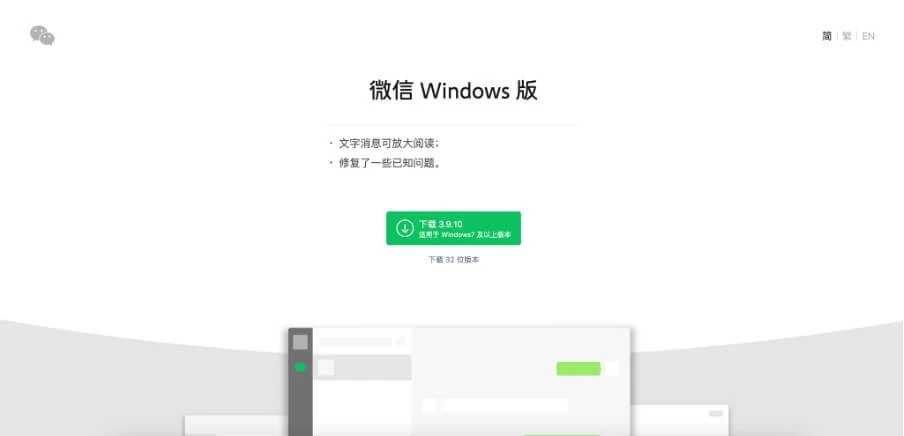
To get the full functionality of WeChat on PC, the best option is to download the WeChat Desktop App. This version supports both Windows and macOS, and it’s frequently updated to include new features and security enhancements.
Download Links & System Requirements
- Official download site: https://www.wechat.com/en/
- Supported platforms: Windows 10 or later, macOS 12.0 or later
Pro Tip: Always download WeChat from the official site to avoid fake versions or malware.
Installation & Login Guide
- Visit the WeChat download page
- Choose your operating system (Windows/Mac)
- Run the installer and follow on-screen instructions
- Open the WeChat desktop app
- Scan the QR code using your phone’s WeChat app
- Confirm login on your mobile device
Switching Between WeChat Desktop and Web Login
WeChat does not support simultaneous login across desktop and web. If you’re logged into one version, the other will automatically log out. This design choice enhances security but can cause confusion if you’re switching between devices frequently.
How to Switch Accounts or Devices
- Open the WeChat app on your phone
- Tap the profile icon > Settings > Switch Account
- Then scan the QR code shown on the WeChat desktop app or WeChat web login page
- Confirm login via mobile
Note: Switching frequently between versions may trigger WeChat’s security alerts, so use consistent logins when possible.
Common Issues & Limitations of WeChat Web
While WeChat Web is convenient for temporary use, it comes with several limitations:
No Chat Backup
Unlike the desktop version, WeChat Web doesn’t allow chat backups to your computer. You also can’t restore older chat logs.
Limited Access to Moments
You can’t post or interact with Moments using the web version. Only browsing chat messages is allowed.
Login Restrictions
You may receive this message on WeChat Web:
“For the security of your account, you cannot log in to WeChat for Web.”
This means your account needs to be verified again or you need to switch to the desktop version.
When to Use WeChat Desktop Instead
If you need stable performance, privacy, and full access to features, download WeChat for PC instead of relying on the browser.
Tips to Secure Your WeChat Web Login Experience
WeChat prioritises account safety, especially for web logins. Users trying to access WeChat Web on shared or public devices should take extra precautions to avoid unauthorised access or data breaches.
Security Tips for Using WeChat Web:
- Use WeChat Web only on trusted devices and browsers, and avoid logging in on public or shared computers.
- Confirm QR code login requests carefully and only approve logins you recognise.
- Log out after each session, especially when using a shared device.
- Review your login devices under Me > Settings > Account and Security > Login Device Management and remove unfamiliar or unused devices. Recent guidance continues to document this device-management feature.
- Use the official WeChat Desktop app if you need more stable, long-term access on Windows or Mac.
How Omnichat Helps You Manage WeChat for Business
Omnichat is an official messaging platform integration partner that enables businesses to manage conversations across multiple channels including WeChat Official Accounts, WhatsApp, Instagram, Facebook Messenger, and LINE.
For businesses looking to optimise customer engagement through WeChat, Omnichat offers a powerful integration with WeChat Official Accounts (Service Accounts).
Key Benefits:
- Centralise conversations from WeChat, Facebook, Instagram, LINE, and more
- Respond to WeChat service account messages via Omnichat’s unified inbox
- Track performance, agent response times, and customer engagement from one dashboard
Why It Matters:
- Save response time
- Improve customer service with real-time interaction
- Reduce support costs
Learn more: Omnichat WeChat integration guide
Final Thoughts
Whether you prefer the browser based WeChat Web or the feature rich WeChat Desktop, both are excellent tools to stay connected, especially for busy professionals. For brands, integrating WeChat through platforms like Omnichat unlocks smarter engagement, faster support, and better sales outcomes.
Book a Consultation