WeChat Web allows users to access their WeChat account directly from a browser, while WeChat Desktop provides a downloadable application for PC and Mac. Both options make it easier to manage conversations, transfer files, and stay connected without using a mobile device. Many professionals use WeChat Web or WeChat Desktop on PC to manage conversations while working. With over 1.4 billion monthly active users, WeChat has become a vital tool for personal communication and business operations. Users communicate with family and friends within the app, receive information through WeChat Official Accounts and mini programs, and even complete purchases directly.
💡Key Takeaways: WeChat Web & WeChat Desktop Guide
– WeChat Web allows users to access WeChat through a browser at web.wechat.com using QR code login, making it a convenient option for quick messaging without installing software.
– WeChat Desktop for Windows and Mac provides additional features such as chat backup, file transfer, Moments access, and a more stable login session compared with the browser version.
– While WeChat Web is suitable for temporary or quick access, WeChat Desktop is recommended for frequent users who need full functionality and better performance on PC.
– Businesses can manage WeChat Official Account conversations alongside WhatsApp, Instagram, Facebook Messenger, and LINE through platforms like Omnichat to centralise customer engagement and improve response efficiency.
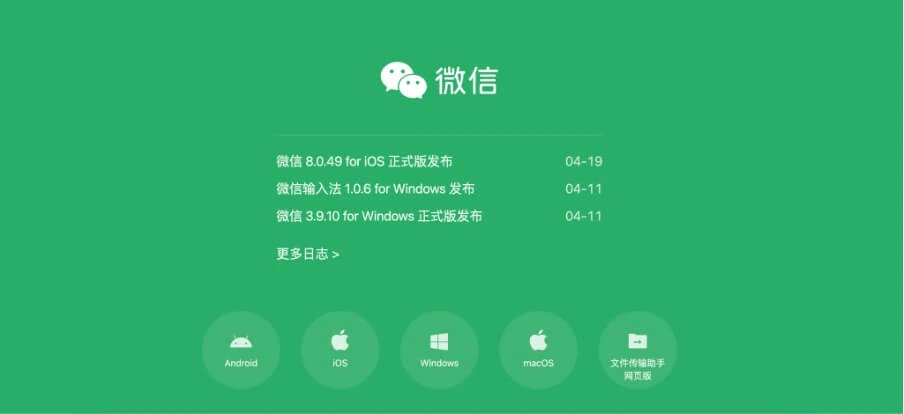
While the mobile app remains the most popular, many users prefer using WeChat Web or the WeChat Desktop version on their PC or Mac for ease of multitasking. This guide explains how to download, use, and troubleshoot these platforms, helping you decide which version suits your needs.
What is WeChat Web and WeChat Desktop?
Both WeChat Web and Desktop versions allow you to send messages, receive files, and stay connected directly from your computer. While the features are similar, key differences exist, especially in security and functionality.
What is WeChat Web?
WeChat Web is accessible from any browser. It allows you to log in via QR code scanning and chat instantly. Ideal for users who need quick access without installing software.
For the security of your account, if you cannot log in to WeChat for Web, you can go to http://wechat.com to download the WeChat app and log in.
What is WeChat Desktop?
The WeChat Desktop app (for Windows and macOS) offers more robust features — including chat history backup, Moments, and file sharing. It’s best for frequent users and business professionals.
WeChat Web vs. Desktop: Key Differences
| Feature | WeChat Web | WeChat Desktop (Windows/Mac) |
| Installation Required | No | Yes |
| Chat History Backup | No | Yes |
| Post/View Moments | View only (limited) | Full access and interaction |
| File Transfer & Screenshots | Limited | Full desktop file sharing |
| Stable Connection | Occasional logout | More secure and stable |
| Login Duration | Session-based (logs out quickly) | Persistent login |
Key Features of WeChat Web and Desktop for PC
Both WeChat Web and Desktop offer core communication functions, but the desktop version for Windows or Mac unlocks additional tools that streamline workflow and social interaction.
Chat Messaging on Web and Desktop
You can send and receive text messages, images, voice notes, and documents. Both versions sync with your phone in real time, ensuring you never miss a message.
Note: WeChat Web login sometimes triggers a security warning. If you see “For the security of your account, you cannot log in to WeChat for Web”, it means web access is temporarily restricted. WeChat recommends using the desktop app instead.
Chat Backup and Sync

With the WeChat for Windows or Mac app, you can back up conversations from your phone to your PC and restore them later. This is crucial for users managing customer conversations or important personal chats.
Moments on Desktop
The desktop version allows users to browse, post, like, and comment on Moments, WeChat’s social feed. This is perfect for those who prefer interacting on a larger screen.
Official Accounts Access
You can easily access subscription and service accounts from the desktop version. This includes news, promotions, and customer support channels. Service accounts are particularly useful for brands offering e-commerce, bookings, or customer engagement.
Advanced Search Capabilities
Search through chats, official account content, and Moments from the desktop app. This is especially helpful when retrieving past messages or finding shared documents.
WeChat Web Login: How to Log In on Your Browser

To use WeChat Web, go to the official login page: https://web.wechat.com
How to Log In:
- Open WeChat on your phone.
- Tap the ‘+’ icon → Scan QR Code.
- Point your phone at the QR code on the web login page.
- Confirm login on your phone.
However, due to WeChat’s increased security protocols, some users encounter a message that blocks access to the web version. In such cases, downloading the WeChat desktop version is the recommended solution.
How to Download WeChat for Windows & Mac
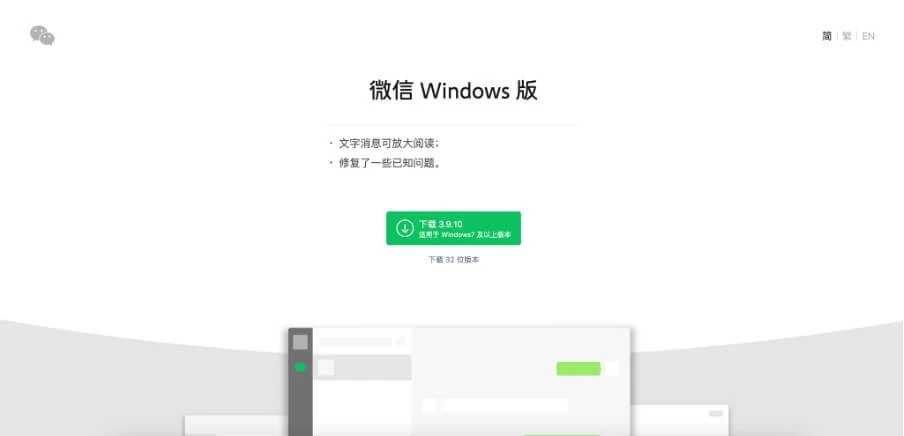
To get the full functionality of WeChat on PC, the best option is to download the WeChat Desktop App. This version supports both Windows and macOS, and it’s frequently updated to include new features and security enhancements.
Download Links & System Requirements
- Official download site: https://www.wechat.com/en/
- Supported platforms: Windows 10 or later, macOS 12.0 or later
Pro Tip: Always download WeChat from the official site to avoid fake versions or malware.
Installation & Login Guide
- Visit the WeChat download page
- Choose your operating system (Windows/Mac)
- Run the installer and follow on-screen instructions
- Open the WeChat desktop app
- Scan the QR code using your phone’s WeChat app
- Confirm login on your mobile device
Switching Between WeChat Desktop and Web Login
WeChat does not support simultaneous login across desktop and web. If you’re logged into one version, the other will automatically log out. This design choice enhances security but can cause confusion if you’re switching between devices frequently.
How to Switch Accounts or Devices
- Open the WeChat app on your phone
- Tap the profile icon > Settings > Switch Account
- Then scan the QR code shown on the WeChat desktop app or WeChat web login page
- Confirm login via mobile
Note: Switching frequently between versions may trigger WeChat’s security alerts, so use consistent logins when possible.
Common Issues & Limitations of WeChat Web
While WeChat Web is convenient for temporary use, it comes with several limitations:
No Chat Backup
Unlike the desktop version, WeChat Web doesn’t allow chat backups to your computer. You also can’t restore older chat logs.
Limited Access to Moments
You can’t post or interact with Moments using the web version—only browsing chat messages is allowed.
Login Restrictions
You may receive this message on WeChat Web:
“For the security of your account, you cannot log in to WeChat for Web.”
This means your account needs to be verified again or you need to switch to the desktop version.
Best Practice
If you need stable performance, privacy, and full access to features, download WeChat for PC instead of relying on the browser.
Tips to Secure Your WeChat Web Login Experience
WeChat prioritises account safety, especially for web logins. Users trying to access WeChat Web on shared or public devices should take extra precautions to avoid unauthorised access or data breaches.
Security Tips for Using WeChat Web:
- Use on trusted browsers only (Chrome, Firefox, Edge)
- Log out after each session, especially on public computers
- Enable two-step verification via your mobile WeChat app
- Avoid using VPNs or proxy tools when logging in, as this may trigger security restrictions
- Prefer desktop version if you need long-term access
How Omnichat Helps You Integrate WeChat for Business
Omnichat is an official messaging platform integration partner that enables businesses to manage conversations across multiple channels including WeChat Official Accounts, WhatsApp, Instagram, Facebook Messenger, and LINE.
For businesses looking to optimise customer engagement through WeChat, Omnichat offers a powerful integration with WeChat Official Accounts (Service Accounts).
Key Benefits:
- Centralise conversations from WeChat, Facebook, Instagram, LINE, and more
- Respond to WeChat service account messages via Omnichat’s unified inbox
- Track performance, agent response times, and customer engagement from one dashboard
Why It Matters:
- Save response time
- Improve customer service with real-time interaction
- Reduce support costs
Learn more: Omnichat WeChat integration guide
Final Thoughts
Whether you prefer the browser based WeChat Web or the feature rich WeChat Desktop, both are excellent tools to stay connected, especially for busy professionals. For brands, integrating WeChat through platforms like Omnichat unlocks smarter engagement, faster support, and better sales outcomes.
Book a Consultation