For brands expanding business in regions like Hong Kong, Taiwan, Japan, and Thailand, a single communication strategy is no longer sufficient to meet market demands. Especially in Taiwan, LINE is the most used messaging platform, making it an indispensable channel for enterprise customer communication and marketing. This article provides you with a complete beginner’s guide to the LINE Official Account (LINE OA), covering account types, application, setup, and maximising LINE operational effectiveness by integrating the Messaging API.
What is a LINE Official Account (LINE OA)?
A LINE Official Account (LINE OA) is a commercial communication platform specifically tailored by LINE for enterprises or brands, used to separate business from personal use. It supports functions such as message broadcasting (push notifications), one-on-one communication, customer service, and marketing campaigns. It can also integrate advanced features like APIs, auto-reply, and segmentation.
LINE Official Accounts are categorised into three tiers: Unverified Account (Grey Shield), Verified Account (Blue Shield), and Premium Account (Green Shield). Grey Shield is uncertified, Blue Shield is the first level of verification, and Green Shield is the highest verification. Therefore, Blue Shield and Green Shield accounts have higher credibility and can be searched by customers.

LINE Official Account Registration
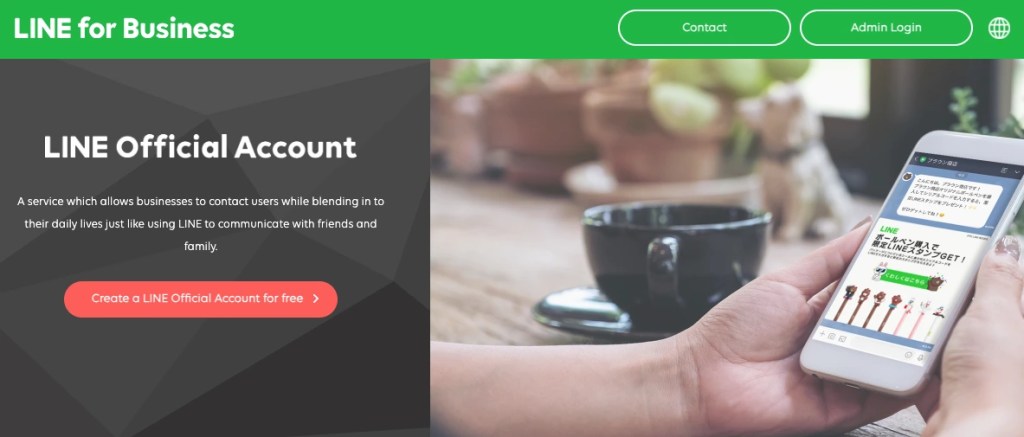
1. Enter the LINE Official Account website and click “Create a LINE Official Account for Free.”
2. Choose to log in using a “LINE Account” or “Business Account” (select “Business Account” if you prefer not to use a private LINE account or wish to log in with a work email).
3. After logging in, fill in the LINE Official Account details, review the “LINE Official Account Terms of Service,” and click “Confirm.”
4. Confirm the entered information is correct, then click “Complete.”
Applying for a LINE Verified Official Account
Step 1: Purchase a Premium ID
1. Log into the LINE Official Account backend, select “Settings” in the top right corner.
2. Click “Account Billing” on the left to register a payment method (skip if already registered).
3. Click “Premium ID” on the left and input your desired ID to purchase it.
The Premium ID costs NT$720 (fordesktop/Androidusers) or NT$1038 (for iOS users) per year and offers better recognition than the Basic ID. For Omnichat,
Basic ID:@603fdbkg
Premium ID:@omnichat
Step 2: Submit Verification Application
1. Log into the LINE Official Account backend, select “Settings” in the top right.
2. In the Account Settings – Information Display section, click the green “Apply for Verification” button.
3. Clicking “Apply for Verified Account” will open a new tab where you fill in the application data. Complete the form as instructed and submit.
Step 3: Submit Supporting Documents
1. After completing Step 2, check your email for an “Application Notification.”
2. The notification will contain an “Acceptance Number” and information regarding the required supporting documents. Documents such as “Company/Business registration or government approval documentation, tax registration certificate” usually require authorisation from the owner or finance personnel.
3. Upload the necessary supporting documents on the LINE Official Account Verification (OAV) platform to finalise the application process.
Necessary supporting documents:

Note: The platform provides a table listing which documents are mandatory (O), not required (X), or optional (△). Cloud links are not accepted for file submission.
LINE Official Account Basic Setup
Account Settings
Once the application is complete, you can prepare the account interface to make a good first impression on customers. Click “Settings” > “Account Settings” on the left to set up a distinctive business name, profile photo, cover photo, and profile summary. This allows customers less familiar with the brand to quickly access key information.
Note: To ensure account authenticity, LINE Verified Accounts (Blue Shield) and Premium Accounts (Green Shield) have naming conventions that must be consistent with the enterprise, merchant, or brand name. Here are some examples:

Adding Friends
After setting up the basic account interface, you can start inviting your customers and fans to become friends! Under “Home” > “Increase Friends” in the LINE Official Account management backend, you can obtain:
- Official Account Link: Available for online promotion, such as social media posts or EDMs.
- Official Account QR Code: Available for offline promotion, such as printing for the store counter or event posters.
- HTML Code of “Add Friend”: Can be embedded on your website.
LINE Official Account Basic Features
Welcome Message for New Friends
Customers receive a welcome message upon adding the LINE Official Account. You can briefly introduce your brand and the purpose of the official account. Go to “Home” > “Automated Messages” > “Welcome Message for New Friends” to configure the message. Message formats include text, photos, stickers, and coupons, allowing up to five messages in one batch. It is best to only provide necessary information without overwhelming the customer.
Pre-set Quick Replies
In the chat interface, click “Settings” > “Pre-set Messages” in the top right corner. You can set common customer questions as different pre-set messages. When a friend asks a similar question, you can quickly select the appropriate content by clicking the “+” in the chat window, greatly improving work efficiency.
Broadcast
Broadcast is designed to save time, allowing businesses to quickly deliver the latest brand offers or announcements to all or segmented customer groups without manual one-to-one sending. Go to “Home” > “Broadcast” > “Create” > “Add New” to select the message type (text, image, video, coupon, survey) and schedule the sending time, which is perfect for marketing campaigns and official notifications.
Manually Applying Customer Tags
In the customer conversation management interface, you can manually categorise customers based on their behavior or characteristics by adding customer tags. This facilitates segmented management and targeted broadcasting of messages and marketing campaigns.
Rich Menu Configuration
The Rich Menu provides fixed quick options displayed at the bottom of the chat screen, assisting customers with fast navigation, bookings, or category guidance. Go to “Home” > “Rich Menu” > “Create” to configure the content. Merchants can set specific areas of the Rich Menu to trigger a keyword action, allowing customers to instantly access pre-set service items, multi-page messages, or promotional content, making information retrieval highly convenient.
LINE Messaging API Integration: Unlocking Advanced Marketing Features
In addition to the native functions, the full operational effectiveness of the LINE Official Account (Grey, Blue, or Green Shield) can be maximised by integrating the Messaging API through a third-party provider (e.g., Omnichat). This unlocks advanced marketing features, including automated messaging, segmented broadcasting, and personalised messages based on user behavior, truly transforming LINE into a marketing tool. (Refer to LINE API integration tutorial for details.)
Automatic Segmentation Tags
Omnichat’s LINE Messaging API supports automatic chatbot tagging. When customers interact with a Chatbot module, tags (e.g., “Cat Lover,” “Spent over $2000”) are automatically applied based on conversation content, eliminating the need for manual tagging. Furthermore, tags can be automatically applied based on customer website browsing behavior, which can be used for future retargeting broadcasts on LINE, FB Messenger, and WhatsApp.
More Precise Segmented Broadcasting
By utilising these segmented tags, marketing broadcasts can be precisely targeted to the right audience. For example, when there is a cat food offer or new cat apparel, you can precisely filter and broadcast to customers tagged as “Cat Lovers.” You can also include personalisation details like name, birthday, or membership information in the messages, enhancing personalisation and attraction, and further boosting open and interaction rates.
Additionally, for customers who abandon their shopping carts, the LINE Messaging API can automatically send a reminder message within hours, including product details, purchase links, and even exclusive discounts or coupons, thereby increasing conversion and repurchase intent.
LINE Chatbot
You can pre-set chatbot auto-reply messages and trigger keywords via the LINE Messaging API. When a customer initiates a conversation mentioning a keyword, the chatbot instantly replies with the corresponding message, quickly solving common problems. Beyond text, businesses can utilise image carousels to send multiple images in one message.
Customers can then click the image/button to proceed to the next corresponding dialogue module or open a URL. Chatbots can also send order notifications (e.g. purchase confirmation, shipping notice, delivery notice), which is more effective than sending notifications via email or SMS.
LINE Game Interaction
Distributing offers is one of the most effective ways to acquire LINE customers. If you want to offer discounts in a creative and interactive way that boosts brand impression, you should use the “Game Module“! Omnichat offers five classic games: Scratch-off Tickets, Lucky Roulette, Slot Machine, Draw Lots, and Gashapon. Key features include:
- Customisable Game Settings: Easily set the number of draws, prizes, and winning probability to match different marketing plans.
- New Customer Referral Mechanism: Customers can invite friends to participate in the game for extra draws, allowing existing customers to automatically acquire new leads for you!
- Multi-Channel Traffic Conversion: The game module link obtained from the Omnichat backend can be placed on FB, IG, websites, and EDMs, successfully converting traffic to become LINE friends through interactive gaming.
- Performance Tracking: Real-time statistics are available for game plays, participants, new friend counts, and sharing times. You can view customer winning records and export the list at any time.
Don’t wait! Omnichat is LINE’s Official Silver Technology Partner. You can connect your existing LINE Official Account to Omnichat or create a brand new LINE business account on our platform. The Omnichat team will assist you in completing the setup, automation flows, and personalised configurations, enabling your business to manage customer relationships more effectively. Book a free demo today to see how you can drive sales and customer engagement through the LINE Official Account.
Book a Consultation