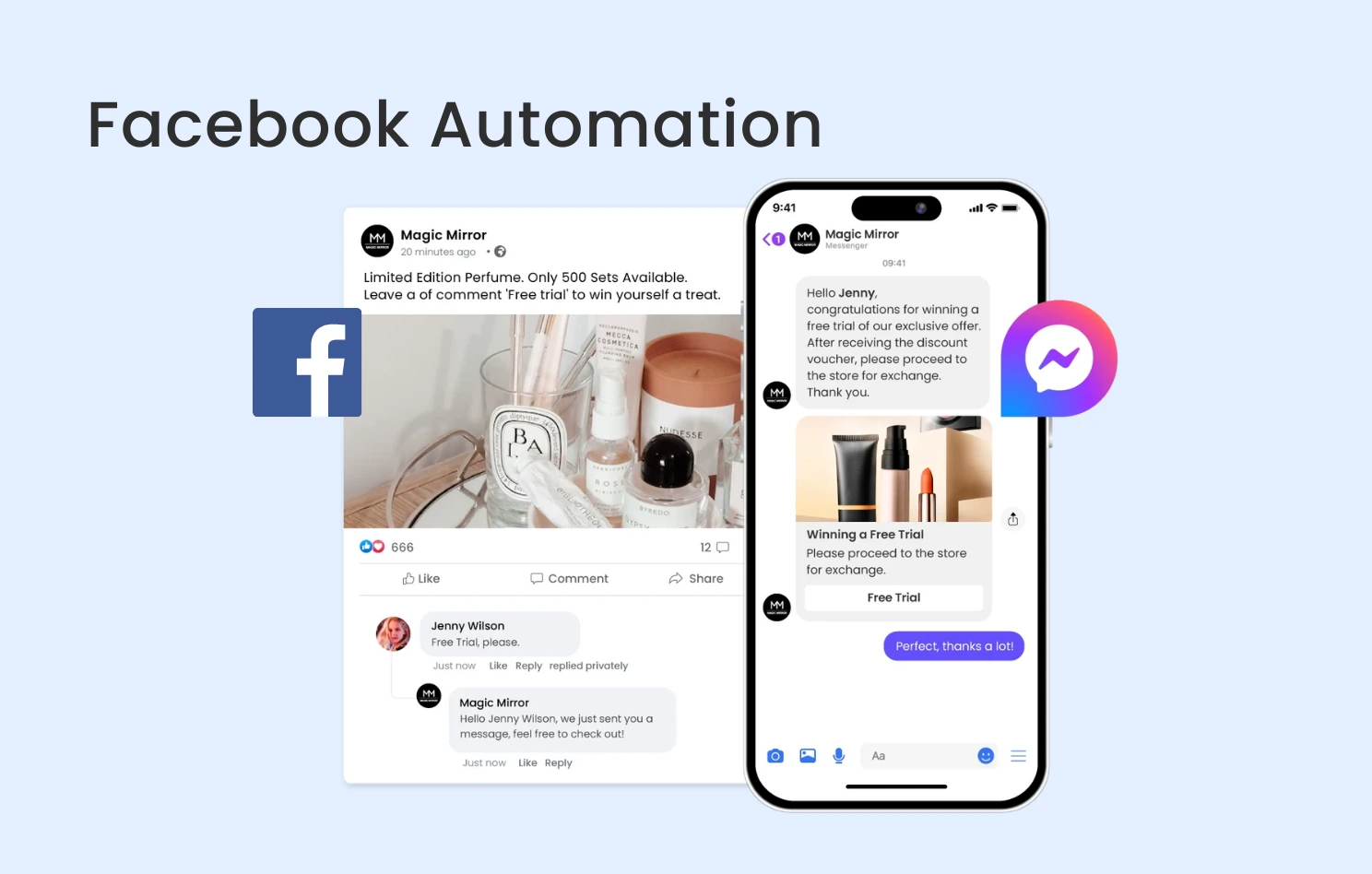
Facebook Chatbot (Messenger Bot) leverages automation to bridge the gap between customer service efficiency and marketing performance. As a vital channel for building instant connections and driving conversions on Fan Pages, this guide explores setup methods, automated marketing layouts, and post-engagement strategies to help you master conversational commerce.
💡 Key Highlights: Facebook Chatbot Guide
Facebook Chatbot Integration & Setup: Seamlessly connect your Facebook Page via Omnichat to customise conversational workflows and automated messaging.
Automated Marketing & Layout: Integrate interactive game modules, segmented broadcasts, and abandoned cart recovery to precisely target potential audiences and boost conversion rates.
Post Engagement & Reach Strategy: Leverage auto-reply comments to capture leads and prioritise high-value content over generic giveaways to ensure audience quality and maintain Page authority.
Why Use a Facebook Chatbot?
The core benefits of using a chatbot fall into two categories:
1. Boosting Customer Service Efficiency
If you prioritise speed, a chatbot is the only solution for labor shortages. It ensures a premium service experience without increasing headcount. Through Basic CS Bots and Keyword Auto-replies, the system can resolve 80% of FAQs in milliseconds. With Canned Responses and Offline Messaging, your brand stays connected 20/24/7, even outside business hours.
2. Marketing & Traffic: Turning Chats into Orders
Most e-commerce marketing aims to drive traffic to websites for checkout. Facebook Chatbots facilitate this by initiating dialogues and proactive Fan Page promotions. Chatbots help brands take the lead, engaging users to start conversations, guiding high-intent prospects to checkout pages, and growing your broadcast subscriber list.
Don’t choose between marketing and service. A successful strategy requires both. Marketing drives traffic, while service secures the conversion. Only by balancing these can you turn “conversations” into “profit.”
Facebook Chatbot Integration Tutorial
How to integrate Facebook Messenger with Omnichat?
1. Login to Omnichat admin page
2. Go to Channels -> “Messenger Integration”
3. Go to “Facebook Messenger Integration” > “Connect your Facebook account”

4. There will be a Facebook pop-up window that shows your login account – click “Continue as (your account)”.
5. Select the Facebook Page and click Continue.
6. Authorisation is required for the integration with Omnichat, please turn the following items on, and click Next
7. Click OK to complete the authorisation process
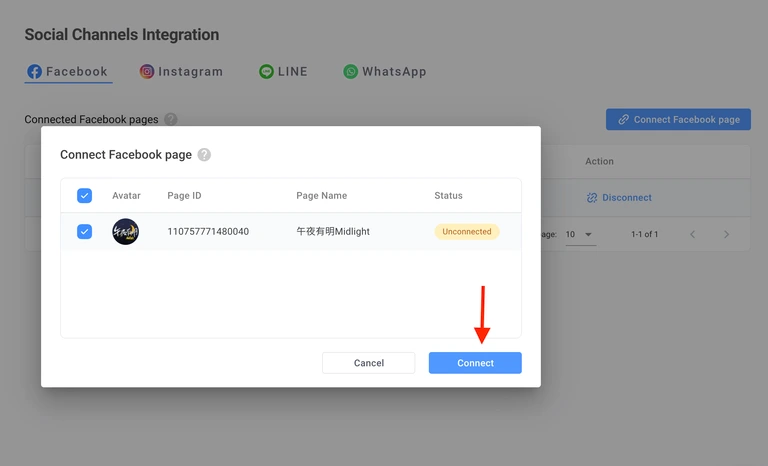
8. Authorised Facebook page will be shown in “Connect Other Facebook Pages” session, click “Connect” to complete the linkage, then you should see your page in “Integrated Facebook Page“
Setting Up Facebook Auto-Reply via Omnichat
1. Go to the Omnichat backend’s “Advanced Automation Features > Facebook/Instagram Comment Reply” page.
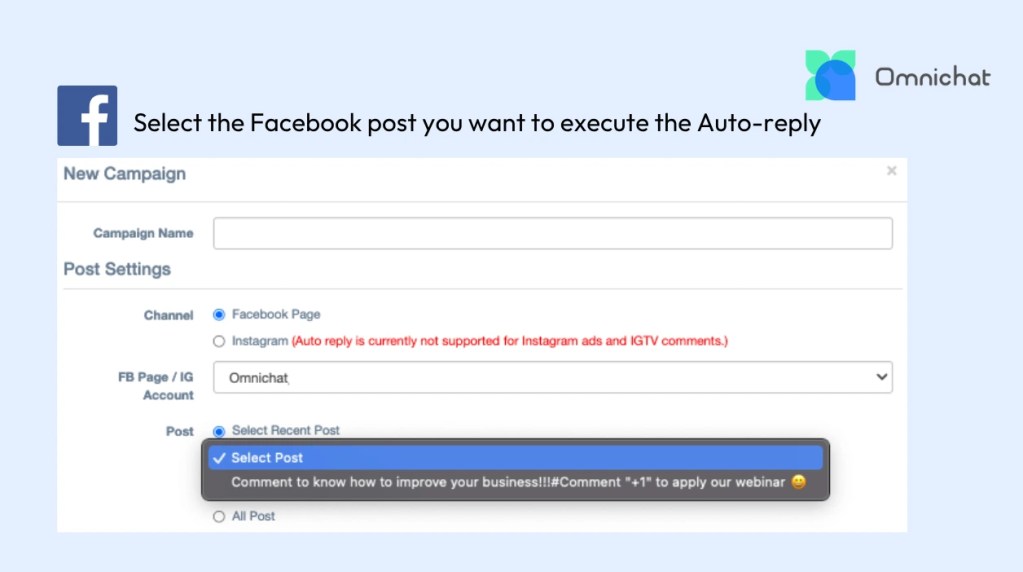
2. Click “New Campaign” and select the Facebook Page.
3. In the “Select Recent Post”, select the “Post” you want to execute the “Auto-reply”
4. Set the effective time limit for the post reply.
5. Set up the post reply’s trigger conditions (e.g., must contain some or all keywords).
6. Create at least one “Public comment reply” or “Private Messages reply” content.
7. You can set up multiple groups of replies (the system will randomly send one of the messages, reducing the chance of the Facebook account being blocked).
8. Click “Publish” when complete.
To set up simple welcome messages, away messages, or business hour notifications via Meta Business Suite, please refer to our Set Up Auto-Reply on Facebook Messenger blog.
Setting Up Facebook Chatbot
To set up a chatbot, you’ll need to enter its name and choose where it will be used. The available options are Facebook, Instagram, WhatsApp, LINE, and Webchat. After selecting the platform, a message will display the card types supported on that platform.
By default, you’ll see an overview of the entire flowchart. If needed, you can drag the blocks to adjust their positions for a clearer view of the flow.
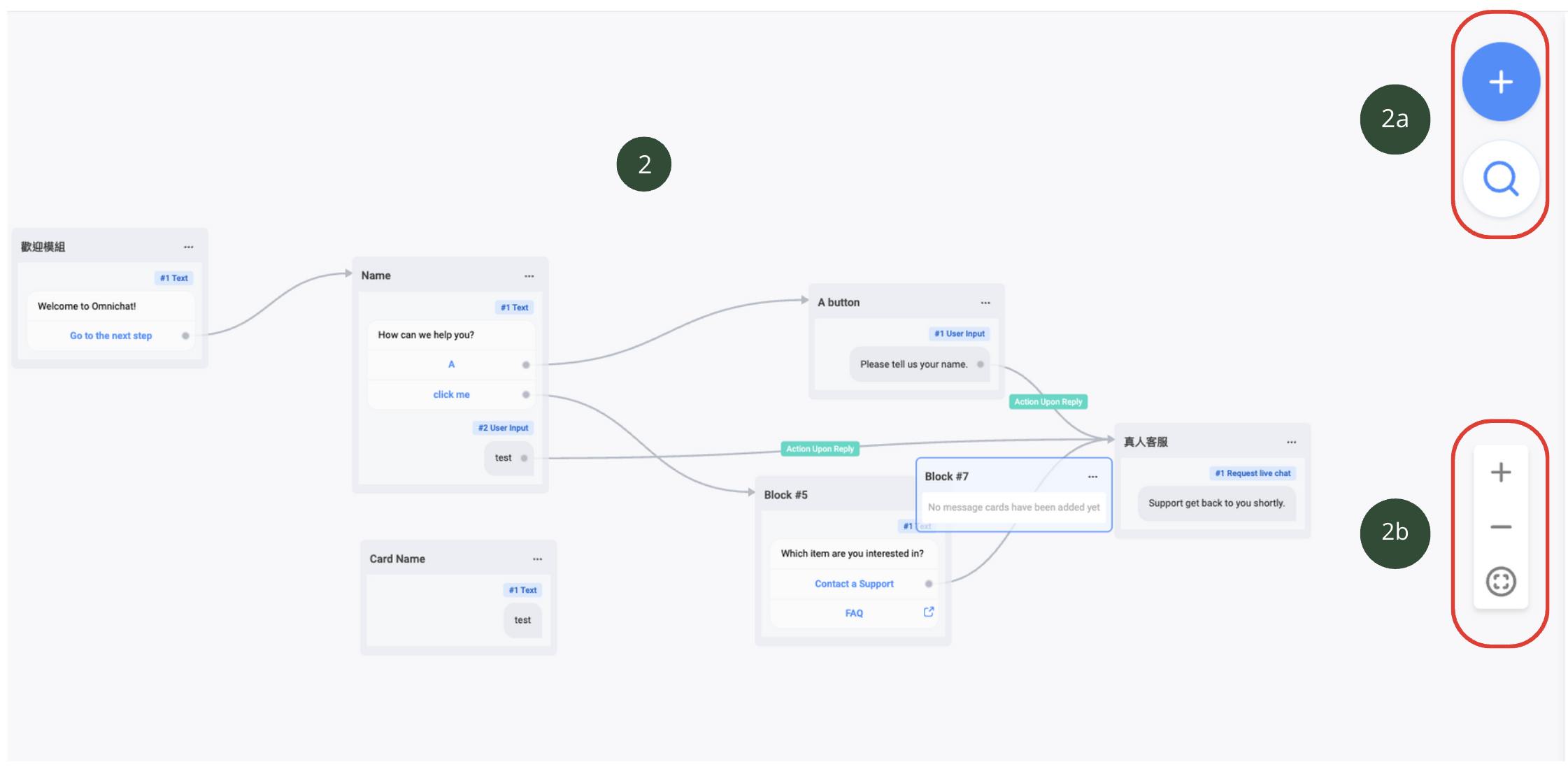
2a. On the left-hand side, you’ll see a toolbar where you can add new blocks by clicking the + button and search for blocks (currently unavailable) using the magnifier icon.
2b. Below, you can use the + icon to zoom in, the – icon to zoom out, and the Full Overview icon to view the entire flow.
Add Block
After clicking the + button mentioned in point 2a. above, you can add two types of cards to the block:
Regular Card: You can add cards applicable to the selected platform.
Live Chat Card: Once customers click this card, they will be directed to a live support agent. This means the conversation will move to “Live Chat” and cannot revert to the “Chatbot”.
Edit Block

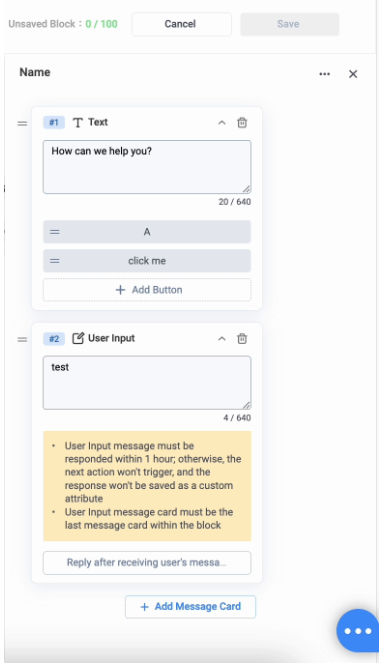
1. Name of the Block: You can edit the block’s name here.
2. Displaying the card type
3. Click the hamburger icon to access the following options:
Expand all message cards: Expand details for all cards.
Collapse all message cards: Collapse details for all cards.
Copy: Duplicate the block with all card details.
Delete: Remove the block with all card details.
Copy Block ID
4. There are two ways to add a message card:
From the “Add New Message Card” button below: Click the button to add a new card.
From between existing cards: Hover between two cards to see a + icon, then click it to add a new card.
Edit Card
A card is a message or an action within a block. It can be text, an image, a coupon, or other interactive features.
Facebook Chatbot Automated Marketing Strategies
Messenger Chatbot with Interactive Game Modules
Beyond text, chatbots can deliver interactive games to capture attention. Omnichat offers 5 classic modules—Scratch Cards, Lucky Wheel, Slot Machine, Fortune Drawing, and Gashapon—deployable across WhatsApp, FB, IG, and LINE. Simply set your prizes, winning probabilities, and quantities to launch high-engagement campaigns in minutes.
Messenger Chatbot with Segmented Broadcasts
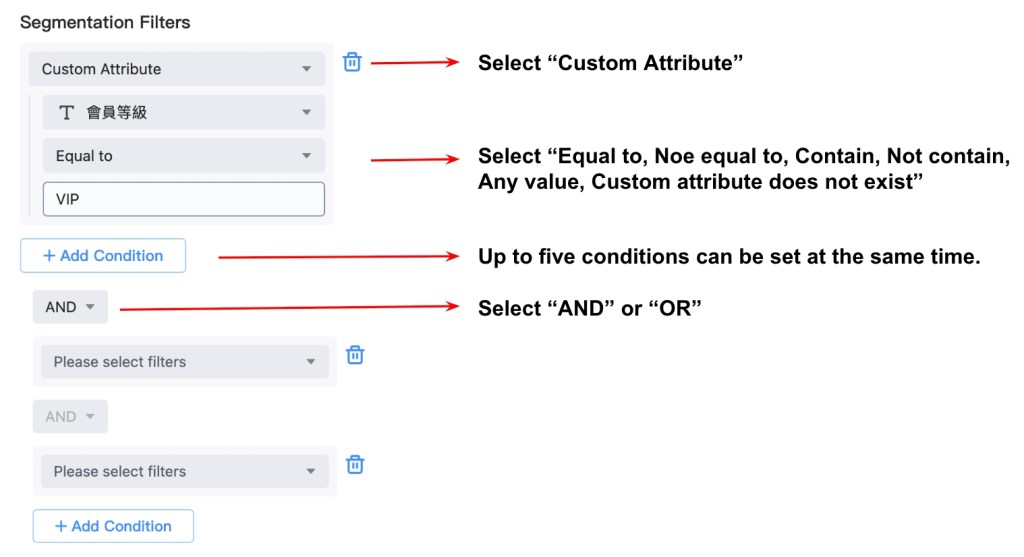
Converting a large subscriber base into revenue requires “hyper-personalised” messaging. Use Omnichat’s segmented broadcast feature to target customers based on interest tags, past interactions, or purchase preferences. Precise targeting significantly boosts click-through and conversion rates compared to generic mass blasts.
Mastering the 24-Hour Rule: Meta policy limits messaging to users who interacted within the last 24 hours. To maintain broadcast rights, you must “reset the clock” through active engagement:
- Buttons over Links: Instead of a raw URL, use “View Details” or “Claim Offer” buttons to trigger click records and refresh the 24-hour window.
- Quick Replies: Offer 2–3 options (e.g., “See More Products” or “Talk to Agent”) at the end of a chat.
- Keyword Prompts: Encourage users to reply with a keyword (e.g., “Reply ‘1’ for store map”) to reopen the communication window.
Messenger Chatbot for Abandoned Cart Retargeting
The Messenger Chatbot is a powerful tool for recovering lost sales. When a customer leaves items in their cart, Omnichat can automatically trigger a friendly reminder or a limited-time discount code. This “conversational retargeting” boasts higher open rates than email, shortening the decision-making process and boosting revenue via instant payment links.
Facebook Chatbot Post-Engagement Strategies
Automated comment replies not only save labor but are essential for boosting post reach.
Core Use Cases
- Interactive Marketing: High-engagement activities like “Comment for Coupon,” “Personality Quizzes,” or “Lead Magnet Downloads” drive the FB algorithm for better organic reach.
- Capturing Intent: Instantly reply to comments like “How to buy?” or “Interested” to ensure no sales opportunity is missed.
Avoiding “Engagement Bait” Risks
- Beware of Facebook Regulations: While interactive posts are effective, excessively asking followers to “leave specific comments, tag friends, or share” may be flagged by Meta as engagement bait. This can lead to a punitive decrease in your page’s organic reach.
- Recommendation: Focus your interaction design on “providing actual value.” Aim to spark natural engagement and ensure that comment content remains diverse and authentic.
Avoiding “Giveaways”
- Avoid Low-Quality Audiences: Giveaways with irrelevant prizes (e.g., winning a Switch when you sell skincare) attract “contest hunters” rather than potential customers.
Protect Brand Integrity: These followers rarely convert and dilute your audience data. Focus on brand-relevant interactions to ensure you are attracting the “right” audience for long-term growth.
Book a Consultation